Explore Slack's limitations including call participant limits and meeting features. Learn three solutions to resolve Slack's disadvantages while keeping your workflow.
Slack has become a standard business chat tool. Since you can easily try it from the free version, many people have likely experienced Slack at some point.
In today’s remote work era, when comparing various tools, you might notice that Slack is “easy to use, but somewhat lacking.” Despite this, why does Slack’s popularity remain strong?
This article is for those who tried Slack and found it inconvenient, or those who would like to continue using Slack if only certain complaints could be resolved. We’ll share Slack’s advantages and disadvantages, along with tips for using it effectively.
Background of Increasing Slack Adoption
Slack’s adoption grew in companies because it matched the era’s demand for flexible communication methods to replace email. Additionally, Slack gained high praise from frontline users, and as it was actually used, trust in the tool increased.
Many companies suddenly implemented remote work as a measure to prevent the spread of COVID-19 through office attendance restrictions. As a result of starting remote work hastily without sufficient preparation, communication problems became apparent:
- “Unable to handle detailed exchanges, reporting stalls”
- “Can’t see subordinates’ situations, making management difficult”
To enable real-time communication during remote work, business chat tools gained attention, and tools like Slack were adopted in succession.
Slack’s Advantages
Strong External Tool Integration
Slack’s strength lies in external tool integration. By connecting apps you regularly use to Slack, you can open them directly within Slack or receive notifications.
No need to switch between multiple apps—completing everything in Slack is convenient. The “Slack App Directory” has over 2,000 registered applications.
Multi-Device Support
Slack supports major operating systems and browsers for both computers and smartphones. You can log into multiple devices with one account, allowing you to use your computer at the office and smartphone when out.
Topic-Based Channel Creation
Continuing all exchanges in one chat makes various topics mix together and become hard to read. By creating channels for each project or topic, you can quickly access important information without being overwhelmed.
Furthermore, “thread” display helps avoid message clutter within channels. Using the “reply in thread” feature groups related discussions together.
Rich Variety of Emojis
Slack offers abundant emojis, and you can even create and register your own. You can input emojis using “:(colon)” + “emoji code,” allowing emoji input without switching to the mouse.
What Are Slack’s Disadvantages?
Slack is an easy-to-use, well-balanced tool, but when you actually use it, there are aspects that feel somewhat lacking.
Voice/Video Call Participant Limits
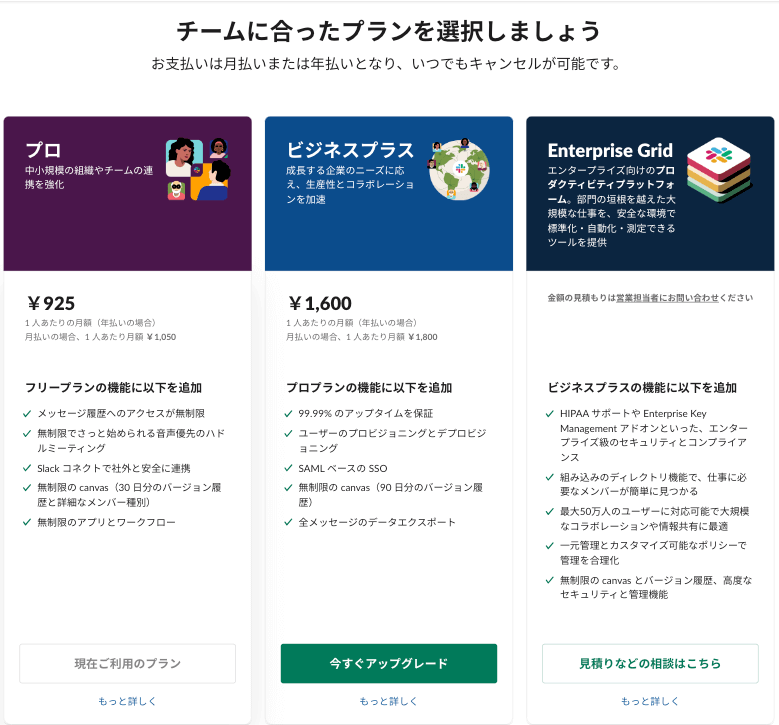
Slack Call participation is limited to 1-on-1 only on the free plan. If your team wants to make group calls, a paid plan is required.
Paid plan Slack Calls support up to 15 people maximum. Compared to other tools, this isn’t exactly generous. If you don’t need cameras, Huddle Meetings support up to 50 people.
Inconvenient as a Meeting Tool
When using Slack Call or Huddle Meetings for web meetings, you’ll notice various limitations. Slack can be used for “quick calls,” but it’s somewhat unsuitable for proper “web meetings.”
For large-scale meetings, scheduling, or individual member invitations, you’ll need to use a separate meeting tool.
Difficult to See Others’ Status
Slack displays Active (online)/Away status, but this alone doesn’t reveal how busy someone is.
You can see someone is logged into Slack, but they might be overwhelmed with work or in a web meeting and unable to respond. Since you can’t tell from your end, it’s hard to judge whether you can reach out to them now.
Poor Cost-Efficiency for Large User Counts
Switching to a paid plan removes limits on message history and app integrations. However, group call participation remains at 15 people maximum even on the highest tier plan.
Even if you’re paying monthly fees for 100 or 200 people, not everyone can have a conversation simultaneously. The larger the organization’s scale, the less value you receive relative to the price.
3 Solutions to Slack’s Disadvantages
1. Upgrade to Slack’s Paid Plan
If you’re using the free plan and feel inconvenienced by user limits, storage capacity, or feature restrictions, some issues can be resolved by upgrading.
However, upgrading won’t solve issues if you’re seeking features that Slack doesn’t have at all.
2. Switch to Another Tool
If you’re dissatisfied with Slack’s features or usability, considering switching to another tool is one option.
However, finding an ideal tool that meets all your desired conditions can be difficult. When changing from Slack to another tool, you need to review operations and relearn how to operate from scratch.
3. Use Complementary Tools with Slack
This method keeps using your current Slack while supplementing missing parts with other tools. Continue using Slack as before, and find tools to accomplish what Slack can’t do.
Since you’re not completely replacing Slack, there’s no stress of tool replacement. Since external tool integration is Slack’s advantage, using other tools to strengthen weak areas is arguably the best way to use it.
VoicePing: A Virtual Office That Complements Slack
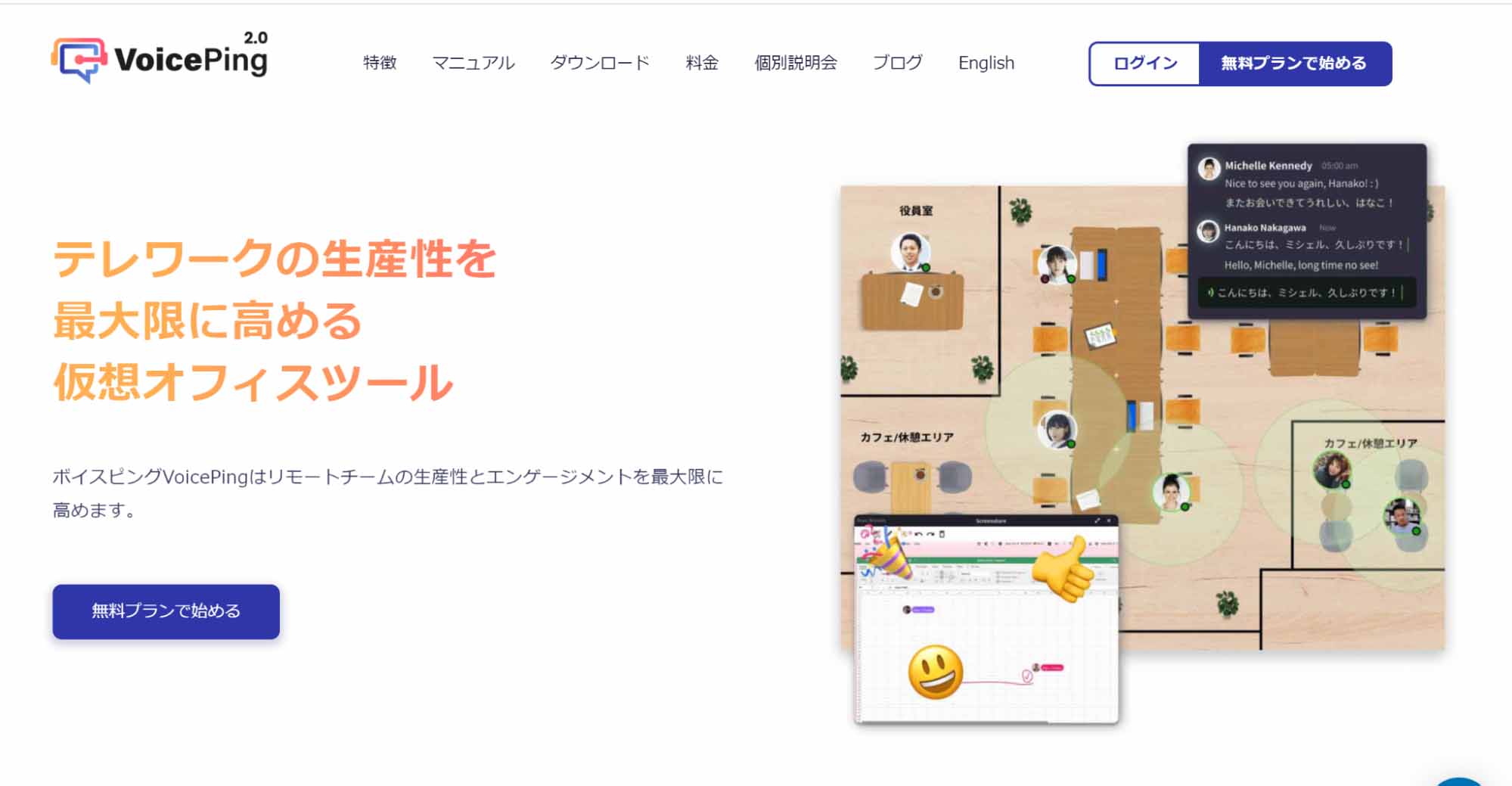
If you “like Slack but find the web meeting features somewhat lacking,” VoicePing might solve your concerns.
High Simultaneous Connection Capacity
VoicePing allows creating 5 accounts even on the free plan, with up to 10 people including guests connecting simultaneously. For small team meetings, the free plan provides sufficient coverage.
One-Click Meeting Invitations
Usually, you can freely converse with members on the virtual office floor. When you want to start a meeting, just click members from the list to complete the invitation. When members accept, the meeting starts.
Cloud Recording Even on Free Plan
VoicePing allows recording up to 1 hour × 5 times even on the free plan. Since recording data is cloud-stored, sharing with other members is easy.
Slack Transcription Integration
You can sync meeting auto-transcription to Slack channels in real-time. AI-powered auto-transcription is highly accurate. Members not present can open Slack to follow the meeting flow in real-time.
Status and Activity Visible at a Glance
In VoicePing, online status is always displayed at the bottom-right of icons. There are three status types: “Online,” “Busy,” and “Away.”
When you’re logged in but don’t want to be disturbed, setting “Busy” provides peace of mind. “Away” automatically switches when it detects idle time.
Additionally, the apps members are currently using are displayed, so you can gauge others’ situations and decide whether to approach them.
Conclusion
Slack’s characteristic is functioning as a collaboration hub that integrates with external tools to aggregate all information. In other words, Slack alone isn’t perfect—it’s Slack with external tools that makes it complete.
To resolve Slack’s disadvantages, find the optimal tools for your needs.
Try VoicePing free and complement Slack with powerful meeting and collaboration features.