Transcription
#1 of 12 systems19.3
%
Average WER across 5 languages
5 languages · 5,000 clips · about 41 hours
 VoicePing
19.3%
VoicePing
19.3% ElevenLabs
23.4%
ElevenLabs
23.4% Qwen3-ASR
24.4%
Qwen3-ASR
24.4%Audio and video transcription
Upload a voice memo, interview, or meeting recording. Get a transcript to review and share, or reach a wider audience with translations, subtitles, and dubbing. Available outputs depend on your file, settings, and plan.
See the workflow and plan limits
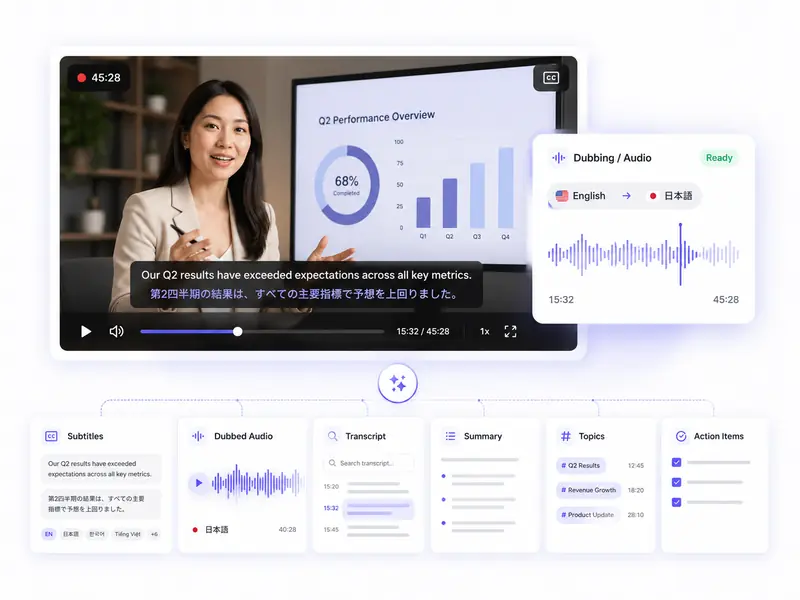


Open File Transcribe and select an audio or video file. Check your plan's remaining minutes and storage: files must be no larger than 2 GB and fit within the available space.
Set the spoken language. For a transcript without translation, choose No translation (transcription only). If you need translated subtitles or dubbing, select the translation language and available output options before submitting.
Check the Progress tab while your file is processing. Once it is ready, open the Meeting Log and check names, numbers and important statements against the original audio before sharing.
Play the English original, then hear five versions dubbed by VoicePing. Choose dubbing when you need it, or start with a transcript of your audio recording.
Start with audio or video
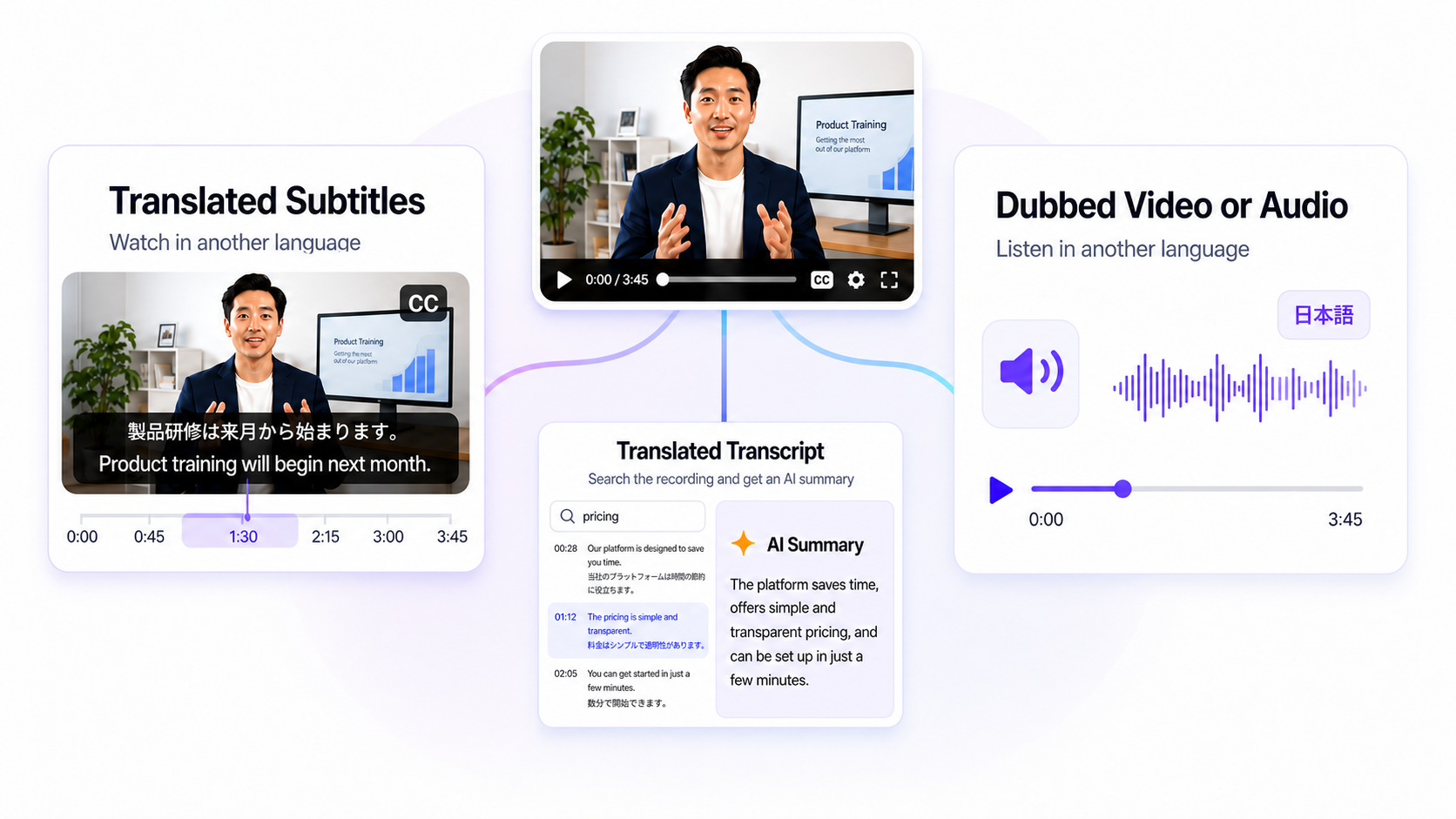
Create a transcript of your audio, or select translation, subtitles, or dubbing for your video before submitting it. Once processing finishes, review and share the results from Meeting Logs. Available outputs depend on your file, settings, and plan.
Get started
Transcription and translation accuracy
Explore our published benchmarks, then review your own transcript against the recording. AI can make mistakes, and accuracy varies with language, terminology, and background noise. Check names, numbers, and key statements before sharing. Benchmark results apply to the tests shown.
Average WER across 5 languages
5 languages · 5,000 clips · about 41 hours
VoicePing
19.3%
ElevenLabs
23.4%
Qwen3-ASR
24.4%Overall translation score
100 English sentences evaluated across 8 models
 DeepL
89.4
DeepL
89.4 Sakana AI
88.0
VoicePing
87.2
Sakana AI
88.0
VoicePing
87.2Note: VoicePing benchmark results. Accuracy may vary by audio quality, speakers, language, and environment.
Plans and file limits
File access, usage minutes, and storage each have their own limits. Check available outputs and remaining usage in your workspace. Files must be 2 GB or smaller and fit within your remaining storage; the Free plan has 500 MB of total storage.
Create a workspace and check which file features are available.
Free Forever
Free Forever
For small teams working with recordings, transcripts and translated media.
$63/month
$41.25/month billed yearly
$82.5/month billed yearly
$165/month billed yearly
For ongoing transcription and media localization.
$473/month
$330/month billed yearly
Annual prices are shown per month, billed yearly, and include tax. Plan minutes are shared usage, not an additional file-processing allowance. File processing and exports depend on your workspace plan and settings. Check remaining minutes and storage before uploading, and review results before sharing.
See all plansFAQ
Learn which files you can upload, what you can create, and where to find the results.
Yes. Select a supported audio file, such as M4A, MP3, or WAV, in File Transcribe. Choose the spoken language and No translation (transcription only). Before submitting, check file access, remaining minutes, and storage in your workspace.
Yes. Choose a summary template when you submit the recording. After processing, review the transcript and AI summary in Meeting Logs. Confirm names, decisions, and action items against the recording before sharing the draft as agreed minutes. For an upcoming online meeting, use Meeting Bot.
VoicePing lets you upload recordings and review transcripts in your browser, without installing a transcription model. It is a hosted service, not a local Whisper installation or a replacement for the Whisper API. If you need local processing or a specific API, confirm those requirements before choosing a tool.
You can create a transcript from audio or video. Depending on the file, plan, and settings, you can also create a translated transcript, AI summary, ASS or SRT subtitles, video with subtitles built in, or dubbed audio or video. Select the available outputs before submitting, then review the results.
VoicePing accepts MP3, WAV, M4A, MP4, MOV, MKV, AVI, WebM, and other common audio and video formats. Each file must be 2 GB or smaller and fit within your workspace's remaining storage. The Free plan has 500 MB of total storage. Check file access, remaining minutes, and storage in the app before uploading.
VoicePing can help localize approved training and product-education recordings for regional teams, distributors, pharmacies, or healthcare professionals. Medical, legal, and market-specific claims still require the organization’s normal local review and approval.
No. File Transcribe can create dubbed audio or video in the selected translation language, but it does not offer lip sync, voice cloning, or voice selection.
Open the Progress tab in File Transcribe to check the status. When processing finishes, open the Meeting Log to review your transcript and available outputs. Check important details against the recording before sharing.
Start with an audio or video file and choose the outputs available on your plan. Review the transcript, then share it with your team.
Explore the controls behind the product, infrastructure and day-to-day operations.
Review our certification, data-handling policies and security questionnaire for your procurement process.
See how we check identity, workspace permissions and API access, and handle untrusted input.
Understand encryption, restricted administrative access, traffic controls and recovery procedures.
See how monitoring, maintenance, software reviews and security updates support daily operations.
Security updates and review materials
Read our recent security measures and download the 143-question security questionnaire. Controls and applicability vary by product, feature and contract.
The four security guides cover selected controls and their scope, including work still in development. Available in English and Japanese.