Remote Team Time Tracking Software | VoicePing
Time tracking for distributed teams

Track project time. Verify work fairly. Turn hours into invoices.

VoicePing connects a focused desktop timer with optional activity evidence, team controls, manager-ready analytics, and invoicing—so remote operations stay clear without stitching together separate tools.

  • Project-based tracking
  • Offline continuity
  • CSV & PDF exports

Start the timer in the VoicePing desktop app. Review settings, activity, and reports in the VoicePing web dashboard. Download the desktop app

One connected workflow

From the first click to the final invoice

Keep time capture, evidence, operations, and billing connected to the same project record.

  1. 01

    Track

    Choose a project, add a working memo, and start the desktop timer.

  2. 02

    Manage

    Apply projects, schedules, limits, and member policies before rollout.

  3. 03

    Verify

    Use only the activity signals your team policy requires.

  4. 04

    Analyze

    Review daily detail, weekly totals, trends, and project distribution.

  5. 05

    Bill

    Export approved hours or generate invoice line items by project.

For every team member

A timer that stays out of the way

Members see the project, task, and running total in one place. VoicePing preserves time through connection drops and synchronizes it after reconnecting.

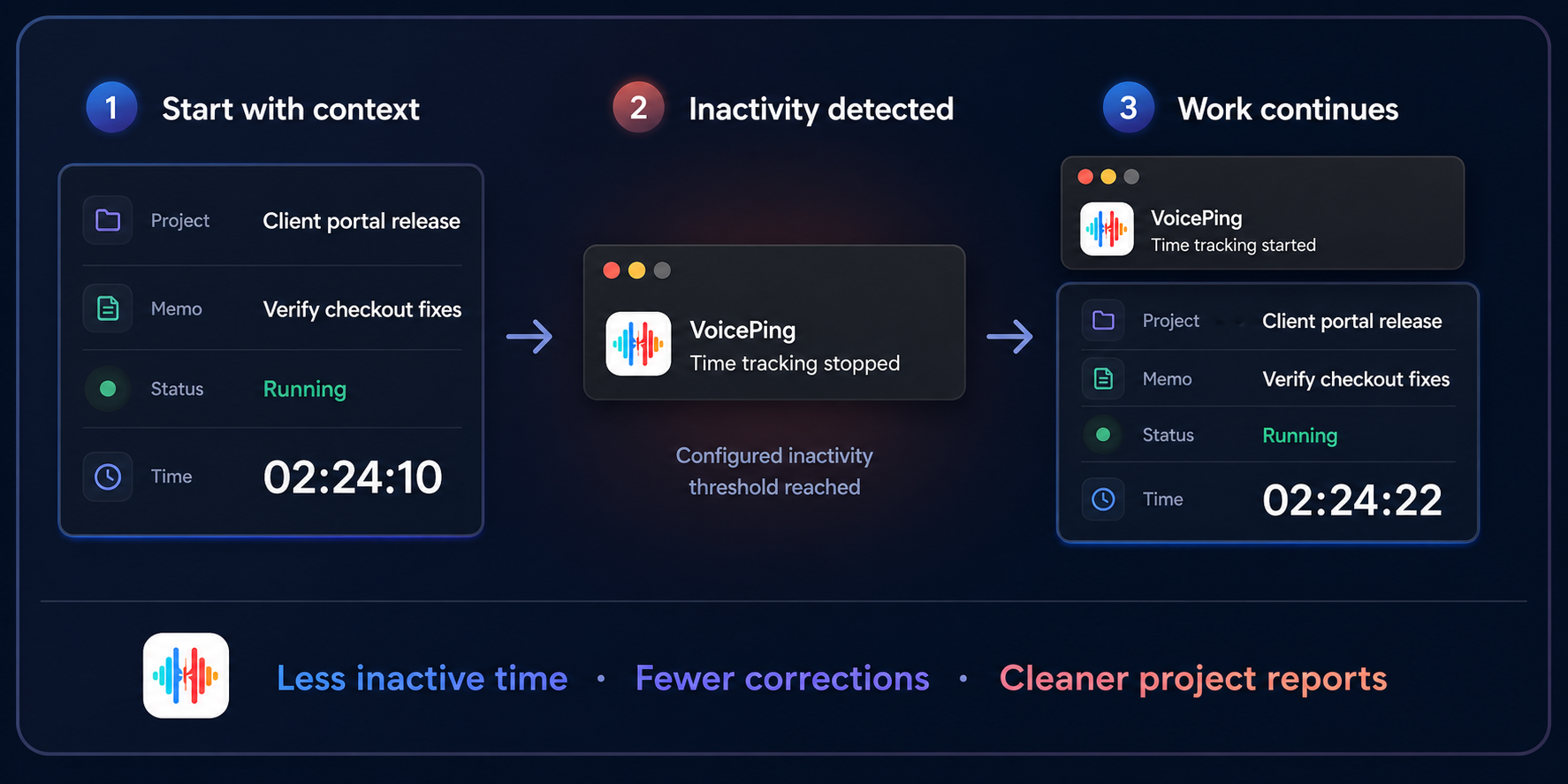
Start with context

Select an assigned project and leave a working memo before tracking begins.

Keep working offline

Temporary connection loss does not erase the active work session.

Stop time cleanly

The timer stops when the computer is idle, locked, or asleep, with a clear restart path.

See today at a glance

Live totals are grouped by project, with direct links to detailed logs.

Today
Thursday, July 10
Synced
Website redesign
Landing page QA
04:18:12
Client research
Interview synthesis
02:24:06
Today total
06:42:18
Offline sessions
sync on reconnect
Member policies
Product Team · 12 members
Search
M Maya Chen
8h/day
Tracking
Screenshots
K Kenji Sato
40h/week
Tracking
Screenshots
L Linh Nguyen
160h/month
Tracking
Screenshots
Allowed days
MTWTF SS
Shift window
09:0018:00
Asia/Tokyo

For owners and managers

Set clear working rules before the timer starts

Configure projects, access, schedules, and evidence per member. Limits are enforced while a timer is running, not discovered after the report is closed.

Projects and assignments

Create projects and assign individual members or groups.

Working-hour limits

Set recurring daily, weekly, or monthly hour limits.

Days and shifts

Define allowed working days, shift windows, and the operating timezone.

Member-level policy

Enable time tracking and each optional activity source only where needed.

Evidence with guardrails

Make monitoring policy visible and configurable

VoicePing separates time tracking from activity evidence. Owners decide which signals are required for each member, while capture notices and privacy controls keep the experience explicit.

Desktop captures

Optional screenshots at low, medium, or high frequency.

Webcam captures

Optional webcam snapshots with a member-selected camera.

Input activity

Optional keyboard and mouse activity percentages—without presenting typed content.

Privacy blur

Choose no blur or low, medium, or high blur for desktop and webcam images.

Display 1
10 min · Medium blur
Webcam
10 min · Medium blur
Capture notice
A screen and webcam capture was saved.

Built-in safeguards

  • Native OS capture notices are available by default, with optional picture-in-picture notices.
  • If a required permission, capture source, or privacy process fails, VoicePing stops the timer and explains why.
  • Workspace owners and managers can review team logs; members can review only their own logs.

Operational visibility

Move from individual sessions to team-level answers

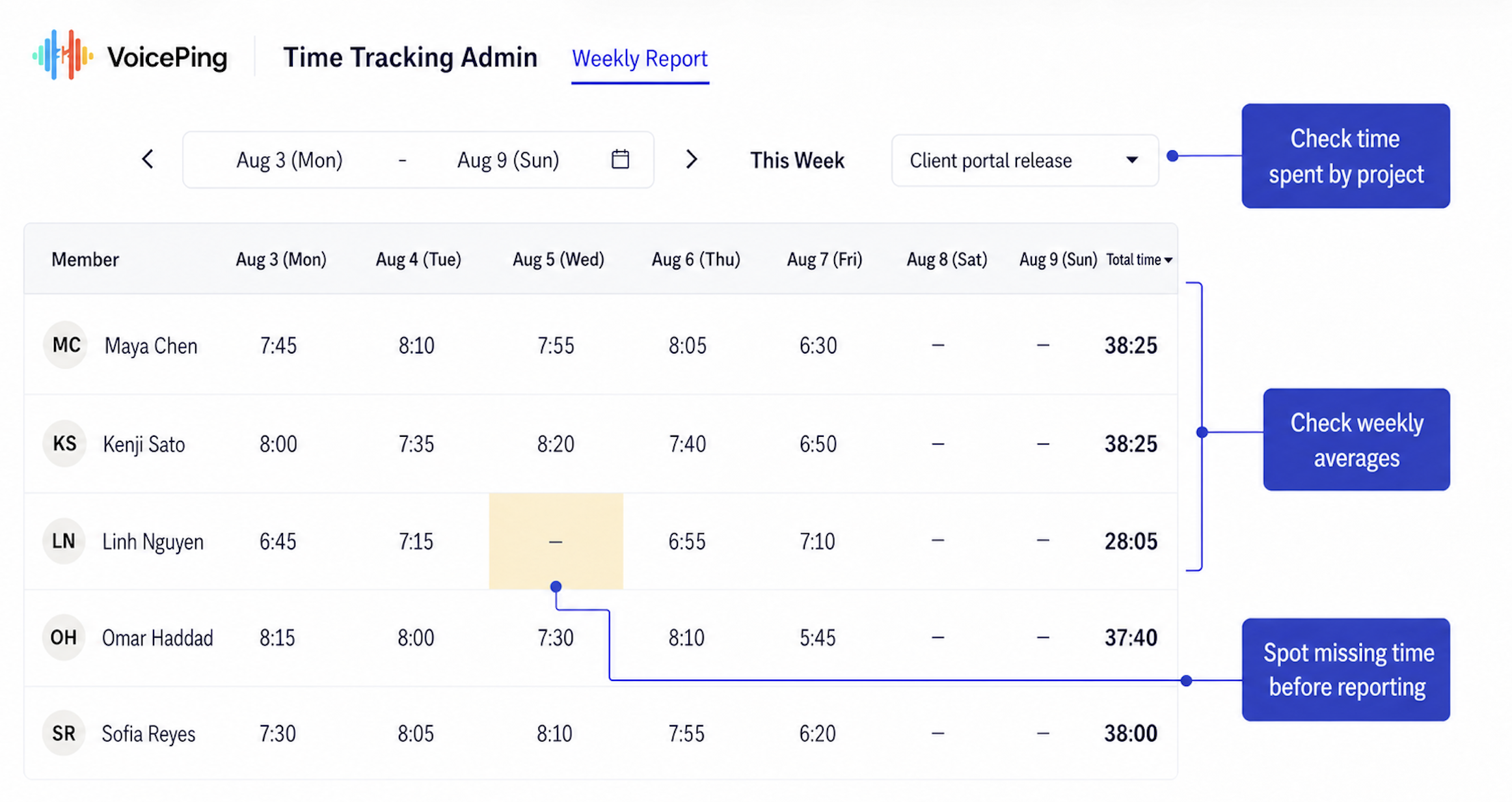
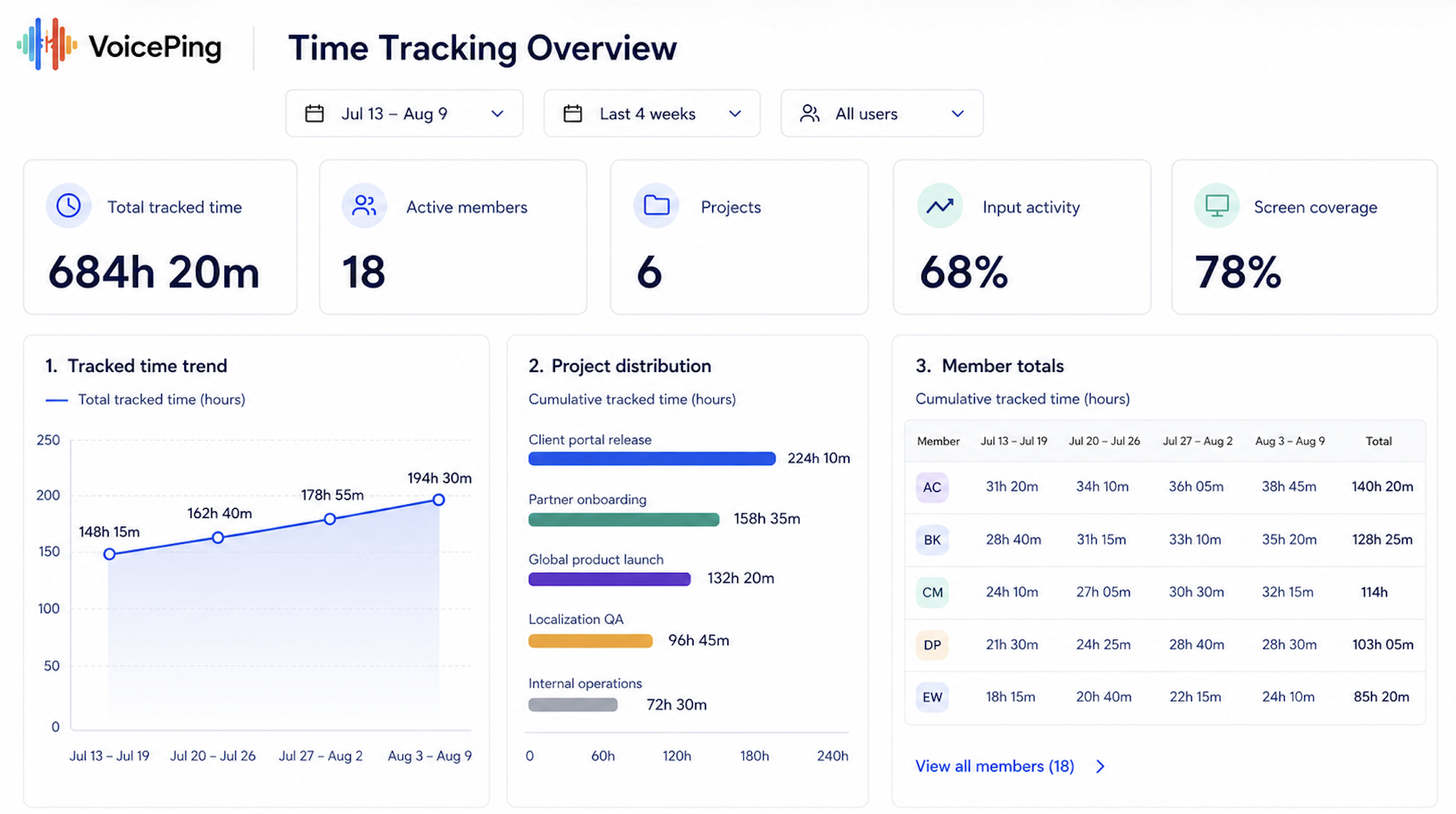
Start with a weekly overview, open a ten-minute activity timeline when more context is needed, then compare periods in the analytics dashboard.

Time Tracking Log
Jul 1–10 compared with Jun 21–30
All members All projects Export PDF
Tracked time
164h 20m+8.4%
Active members
12+2
Projects
7Current period

Tracked time trend

Hours per day
Jul 1Jul 5Jul 10

Project distribution

Top projects
Website redesign86%
Client research62%
Product planning48%
Internal operations31%

Weekly and daily reports

Filter by member, project, or date, then move from totals into session detail.

Activity and capture coverage

Review input activity, screen coverage, webcam coverage, and capture frequency trends.

Period comparison

Compare tracked time, users, projects, and activity signals with the previous period.

Flexible dashboards

Pin the cards that matter most to your operating review.

Close the loop

Correct, export, notify, and invoice

The work does not stop when the timer does. VoicePing keeps the operational follow-through in the same workspace.

Manual time log

Audited corrections

Add or delete time with validation and a record of who made the change and when.

Ready to share

CSV and PDF reports

Export detailed rows plus member and project summaries for the selected period.

Hours to billing

Invoices from tracked hours

Generate project line items, add rates and tax, then create or download the invoice PDF.

Keep teams aligned

Messaging notifications

Post timer start and stop updates to Slack, Chatwork, or Discord.

Customer stories

See how distributed teams put time tracking to work

Customer-approved stories show how VoicePing supports remote operations alongside day-to-day collaboration.

Osintech team using VoicePing time tracking and its virtual office Fewer tools to manage
Osintech

Time tracking and a virtual office in one place

Osintech replaced separate time-tracking and virtual-office tools with one shared workspace.

Customer outcome

Osintech reported more comfortable quick catch-ups and increased communication after adopting VoicePing.

Osintech customer interview
Read the story
YNS employees collaborating in the VoicePing virtual office Around 100 employees
YNS Inc.

Clearer task allocation for a global IT team

YNS uses time tracking to make task allocation and schedule management clearer across teams in Japan and the Philippines.

Customer outcome

Team members reported improved work efficiency, with time tracking making task allocation and schedule management easier.

YNS customer interview
Read the story
IROX and VoicePing customer story Fully remote operation
IROX

Management and time tracking in the same workflow

IROX brought remote team management and time tracking into one workflow for teams across Japan and overseas.

Customer outcome

Employees described VoicePing as intuitive and easy to use while collaborating remotely.

IROX customer interview
Read the story

Start with the workflow you need

Try VoicePing free, then scale with your team

Create a workspace, choose the plan that fits your team, and review every plan detail before rollout.

  • Free plan available for one account
  • Screen capture is included from the Individual plan
  • Premium includes a 1-week trial; Enterprise includes 2 weeks

Questions before rollout

Time tracking FAQ

Product and rollout

Is the VoicePing desktop app required for time tracking? +
Yes. Starting and running the timer requires the VoicePing desktop app. Owners and managers review time-tracking settings, activity, and reports in the VoicePing web dashboard.
Can we use time tracking without screenshots or webcam captures? +
Yes. Time tracking, desktop screenshots, webcam captures, and input activity are separate member-level controls. Owners and managers choose which optional evidence sources apply.
What happens if someone loses their internet connection? +
VoicePing continues the local work session during a temporary connection loss and synchronizes pending time after the connection returns.
What happens when a member becomes idle? +
VoicePing stops the active timer when the configured idle threshold is reached, or when the computer is locked or asleep. The member is shown why tracking stopped and can restart when work resumes.

Review and billing

Who can see time-tracking logs? +
Workspace owners and managers can review team logs. Members are restricted to their own time-tracking logs.
Can managers correct a time entry? +
Time can be added or deleted with validation. Manual changes record the affected member, the person who made the change, and when the change was made.
Can reports be exported? +
Yes. Reports can be filtered by date, project, and member, then exported as CSV or PDF.
Can tracked hours be used for invoices? +
Yes. VoicePing can generate invoice line items from monthly project hours. You can then add rates, tax, currency, client details, and download the invoice as a PDF.

Make every project hour easier to understand and use

Track work, review it responsibly, and carry approved hours into reports and invoices.