In this article
An overseas colleague asks a question. You understand the translated captions, but by the time you have worked out a reply, the conversation has moved on. Choosing a live translation tool means checking how both sides can understand and respond, in the meeting app or room you actually use.
If your team already meets in Teams or Zoom, start with their translation features and participant requirements. If every customer uses a different meeting app, consider a separate translation service. For short conversations during a business trip or site visit, a phone app or dedicated device may be enough.
We selected these ten through Japanese and English market searches, then checked current product, support and pricing pages on September 9, 2026. Selection favors Japanese conversation support, a practical reply route, clear participation requirements and distinct business uses. This is a curated shortlist, not a market-share or measured-accuracy ranking; we have not tested the tools using the same audio samples. Publisher disclosure: this guide is produced by VoicePing.
Compare the ten tools at a glance
Start with where the conversation happens and whether you need to read a translation, hear it, or send a translated reply. “Voice translation” can describe any of these, and the setup is not always the same.
Scroll sideways to compare every column.
| Tool | Good fit | Translation output | First thing to check |
|---|---|---|---|
| Microsoft Teams Interpreter | Recurring meetings between licensed Teams users | Translated speech | Each listener’s Copilot entitlement |
| Zoom Voice Translator | Calls that already take place in Zoom | Translated speech | Add-on access and desktop version |
| DeepL Voice | Business teams using several meeting platforms | Captions and documented audio; rollout caveat | Audio license for each listener |
| Palabra | Dedicated two-way translation across meeting apps | Translated speech and captions | Partner access and meeting-hour plan |
| JotMe | Individuals working across Zoom, Teams and Meet | Captions and translated speech | Virtual audio setup and 5× metering |
| Interprefy NOW | Organized multilingual groups | Translated speech and captions | App per person; controlled turns |
| Google Translate | Short in-person business exchanges | Spoken translation and text | Live mode on the actual phone |
| Apple Live Translation | Calls and visits using compatible Apple devices | Phone voice translation; in-person audio | iPhone, OS and AirPods requirements |
| POCKETALK S2 | Shared devices for business visits | Spoken translation and text | Purchase and connectivity period |
| Timekettle W4 Pro | Earbud conversations and mobile calls | Spoken translation; call routing documented | Exact phone, app and hardware model |
Each profile links to official requirements. If your counterpart also needs translation, confirm their access as well as your own. Being able to hear an incoming translation does not establish how your translated reply reaches them.
Check how your translated reply reaches the other person
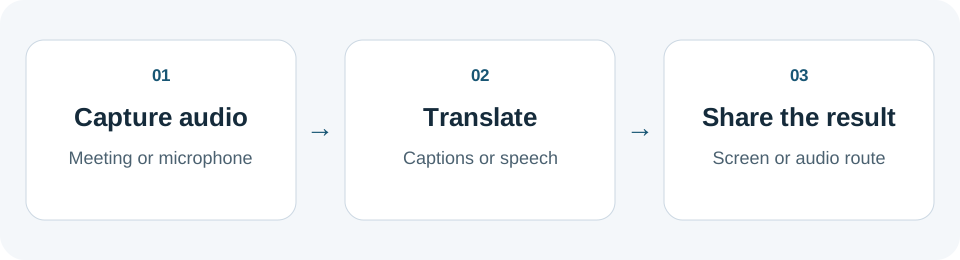
There are three steps to check: capture the audio → translate it → deliver the translation. A tool reading a translation aloud on your computer does not necessarily send that audio into your meeting.
- To understand the other speaker: translated captions or audio in your headphones may be sufficient.
- To reply in your own language: check outgoing translated audio, a shared translation page, or the license your counterpart needs.
- For a two-way conversation: test both language directions in the same setup, including interruptions and overlapping speech.
Captions may suit someone who can comfortably read while listening. Spoken translation may be more useful when they need to look at a presentation or physical product. Choose a route that works for both participants.
Ten options for live business conversations
Translation inside your meeting app
1. Microsoft Teams Interpreter: for teams already using Copilot
Teams Interpreter lets participants hear translated speech, including Japanese. It is a practical candidate for recurring meetings between overseas offices when the necessary Microsoft licenses are already in place.
Our take: Start here for recurring collaboration between offices that already have the required licenses. For new customers, check their eligibility before sending the invitation.
Pricing: Copilot Business adds ¥3,148/person/month equivalent on annual commitment, or ¥3,778 monthly, excluding tax. Eligible base subscription and Teams access are extra. Includes 20 interpretation hours/person/month; temporary promotions excluded. Microsoft pricing.
Pros
- Participants choose the language they want to hear within the meeting.
- Eligible Microsoft 365 Copilot users receive 20 interpretation hours per person per month.
Cons
- Each user needs an eligible license. Anonymous and guest identities cannot use Interpreter; external participants need a verified Microsoft 365 account with a valid Copilot license.
- Teams Premium translated captions and Copilot's spoken interpretation have different requirements. The organizer's subscription does not automatically give everyone spoken translation.
Participant requirements · Licensing and included hours
2. Zoom Voice Translator: for conversations that stay in Zoom
Zoom offers Voice Translator alongside its separate translated-caption feature. Current support documentation lists five speech-translation languages, including Japanese and English. It is worth checking when your customers already prefer Zoom.
Our take: A useful first test when customers already meet in Zoom. Verify translation access on both sides of the actual call.
Pricing: Confirm the Live Translation add-on or ZoomMate price, spoken-translation credits and participant access. A current Japan price and voice-credit rate were not established; translated-caption pricing is a separate entitlement.
Pros
- Participants choose their speaking and listening languages within Zoom.
- You can evaluate translation without moving the conversation to another meeting service.
Cons
- A qualifying Live Translation add-on or ZoomMate entitlement is required. Confirm spoken-translation pricing and usage separately from captions.
- The documented requirement is Windows or macOS desktop version 7.0.0 or later. Long uninterrupted speech may wait for a pause before translated playback.
Ask who needs the entitlement and how the other person will hear the translation. Official setup and requirements
Dedicated translation across meeting apps
3. DeepL Voice: for companies comparing online and in-person workflows
DeepL Voice offers separate meeting and in-person conversation products. Its meeting service supports Teams, Zoom and Google Meet, with Japanese speech recognition and translated captions documented.
Our take: Worth evaluating for a company using several meeting platforms, provided the intended plan includes the spoken workflow your participants need.
Pricing: Confirm the applicable Voice plan or quote. Each audio listener needs an eligible license; audio draws from the Translation Manager’s allowance. A Japan price was not confirmed.
Pros
- Companies can evaluate one translation provider across several meeting platforms.
- Caption participants can join without their own DeepL account or license in the documented sharing setup.
Cons
- Spoken translation has different requirements: the licensing guide specifies an eligible Voice license and the desktop app for each listener.
- The meeting product page still contains “coming soon” language for speech translation, while help pages document Japanese spoken output and licensing. Confirm availability for the exact plan you intend to buy.
Count caption readers and audio listeners separately when discussing a plan. Product overview · Language support · License requirements
4. Palabra: for dedicated spoken translation across meeting apps
Palabra offers a two-way conversation mode for Zoom, Teams and Google Meet, with Japanese among its supported voice languages. Its documented flow starts with a meeting link and the languages and voices you want to use.
Our take: A candidate for dedicated spoken conversation across meeting apps. Trial the customer’s joining steps and the return audio before committing.
Pricing: Meetings Starter costs US$60 monthly, or US$45/month equivalent with annual billing, and includes 3 hours/month. Other product modes consume the shared pool differently; tax treatment is unconfirmed. Plan documentation.
Pros
- Conversation and presentation modes are distinguished, making the intended speaking pattern clear.
- Meeting plans publish included hours, with a trial for checking your workflow.
Cons
- Confirm participant access and meeting-host restrictions before inviting a customer. The public overview does not resolve every guest or audio-control condition.
- Calls, events and streams consume the shared usage pool differently. The API's per-minute price is a separate purchase route.
Start with the meeting plan and check both participants’ audio. Meeting workflow and Japanese support · Plans and usage rules
5. JotMe: for people whose customers use different meeting apps
JotMe captures microphone and computer audio alongside Zoom, Teams or Google Meet. Its Fast Audio mode documents one-way and two-way speech translation, in addition to captions. Japanese spoken output is documented; test your exact pair and audio route before committing.
Our take: Suits an individual willing to configure audio for different customer meeting apps. Compare usable voice minutes, not just the advertised allowance.
Pricing: Free includes 20 basic-caption-equivalent minutes/month. Pro is US$20 monthly or US$120 annually for 200 equivalent minutes/month. Fast Audio consumes 5×, and shared audio adds recipient consumption; tax treatment is unconfirmed. Plans.
Pros
- It can work without adding a bot to the meeting's participant list.
- You can choose captions or spoken translation according to the conversation.
Cons
- Sending translated speech into a meeting requires audio routing, such as a virtual audio device. Test the complete route with headphones before the call.
- Fast Audio consumes allowance at five times the Basic caption rate. A 200-minute allowance does not provide 200 elapsed minutes of spoken translation.
Use the free allowance to check both outgoing speech and actual usage consumption. Japanese spoken-output announcement · Meeting workflow · Speech setup · Usage rules
Organized multilingual groups
6. Interprefy NOW: for multilingual groups using individual phones
Interprefy NOW lets participants speak and receive translated audio or captions through their own phones. Buyers in Japan can review local purchasing and onboarding arrangements through SIMUL.
Our take: Best considered for organized multilingual sessions with clear speaking turns and planned onboarding. The annual package needs to fit recurring use.
Pricing: The Japan 20-hour annual package is ¥343,200 plus ¥85,800 setup, including tax: ¥429,000 in the first year. It is annual prepayment, not a month-to-month app subscription.
Pros
- Japanese speech input and output are supported in multilingual sessions.
- A Japanese sales channel offers an introduction and operating guidance as part of its package.
Cons
- Only one microphone can be live at a time. Each participant needs the app and listens through an earpiece or headphones; phone loudspeaker playback is disabled.
- The Japanese offer lists a maximum of 30 participants and annual prepaid hours. The global FAQ lists a different participant cap, so confirm the terms of the contract you buy.
When combining it with a video meeting, check the separate phone audio route. Operating FAQ · Japan offering and prices · Speech languages
Phone calls and in-person conversations
7. Google Translate: a free starting point for in-person conversation
Google Translate is a practical starting point for short face-to-face exchanges. Google introduced headphone live translation in Japan on Android and iOS; current Android help describes Listening, Conversation and Text-only modes.
Our take: Start with an introduction or schedule discussion on a visit. It may be enough when the conversation is short and face-to-face.
Pricing: The app is free. Phone and connectivity costs are separate. Consumer-app access does not establish company administration or contractual features. Google Translate.
Pros
- You can start with a free app on a phone you already have.
- Listening and turn-taking conversation modes address different needs, with spoken translations available.
Cons
- A face-to-face translation mode on your phone does not automatically send translated speech into a PC meeting.
- Features vary by app, OS and language. Check separately for any sharing controls or meeting records your company needs.
Japan launch details · Live translation modes
8. Apple Live Translation: for people already using compatible Apple devices
Apple supports Japanese live translation in supported Phone calls and AirPods conversations. These are different workflows: Phone provides spoken translation, while the iPhone guide describes translated captions in FaceTime.
Our take: Try the relevant built-in feature if you already have compatible Apple devices. The Phone and in-person AirPods workflows have different reply controls.
Pricing: No separate translation subscription is shown in the cited guides. Budget for compatible Apple hardware and, for earbud listening, supported AirPods. Calling and data charges remain separate.
Pros
- Existing compatible-device owners can evaluate call translation within the Phone app.
- In-person AirPods translation processes downloaded language models on the iPhone.
Cons
- Live features require compatible Apple Intelligence hardware and software. AirPods use adds supported earbud models, current firmware and the Translate app.
- If your counterpart lacks compatible AirPods, you show the translated reply or press Play on the iPhone. Your earbuds alone do not create an automatic audio channel for both people.
Check Japanese availability for the specific feature before buying hardware. Language availability · Phone and FaceTime distinction · AirPods setup
Dedicated translation hardware
9. POCKETALK S2: a dedicated device for business visits
POCKETALK S2 returns spoken and written translations through a dedicated handheld device. It suits turn-taking conversations on a customer or supplier visit, without configuring meeting software or handing over your personal phone.
Our take: A practical candidate for a device shared among staff on visits. Choose it for that operating convenience rather than an assumed accuracy advantage.
Pricing: S2 costs ¥36,300 including tax and two years of connectivity. Check the required device count, destination coverage and connectivity renewal costs.
Pros
- Select two languages, hold the button and speak.
- A model with two years of connectivity is available for company travel or shared-device use.
Cons
- Cloud translation requires a connection. Check coverage, signal and the included SIM service's expiry.
- Its primary workflow is face-to-face conversation using a device, rather than translating a multi-person PC meeting.
POCKETALK’s phone app and Sentio browser service are separate products with different prices, language support and connectivity terms. Device workflow · Model prices
10. Timekettle W4 Pro: for earbud conversations and mobile calls
Timekettle’s W4 Pro combines in-person earbud translation with documented two-way phone and virtual-meeting translation. The vendor describes both sides receiving translated audio during calls, with no extra translation device required for the remote participant.
Our take: Consider it when earbuds fit both your visits and calling routine. Test the exact phone and calling app before buying for a team.
Pricing: The localized storefront displayed ¥67,513. Confirm the current checkout total, tax and W4 Pro call-mode terms; a compatible phone is also required.
Pros
- One product covers face-to-face conversations and supported calling workflows.
- Japanese and English are listed, and the call documentation addresses the remote participant's audio rather than only local captions.
Cons
- You need the earbuds, a compatible phone and the Timekettle app. Test the exact calling app and both audio directions before relying on it for a customer call.
- Online call modes need internet. W4, W4 Pro, W4 Plus and X1 have different functions and terms; specifications cannot be carried across models.
Hardware convenience is a reason to evaluate it, not evidence of better accuracy. Two-way call workflow · W4 Pro product and language details
Other candidates worth considering
For compatible Galaxy owners, Samsung Live Translate is a close alternative to Apple’s call workflow; Japanese is supported, but third-party app eligibility must be checked on the device. VoicePing is relevant when shared captions, spoken playback and meeting records matter; confirm the counterpart’s listening route. Sentio also provides browser-based spoken output, but its two-way licensing and the standard plan’s stated internal-company-use limit need checking for external client conversations. These are scope and access distinctions, not conclusions about translation quality.
Compare costs by people, minutes and spoken output
Prices appear under each product with their original currencies and billing basis, checked on September 9, 2026. Include the base subscription, translation add-on, equipment and any participant licenses when estimating your own cost.
For JotMe, the advertised allowance is measured at the Basic caption rate. With no other usage or shared recipients, Pro’s 200 equivalent minutes provide 200 ÷ 5 = 40 minutes of Fast Audio. A displayed “minute” can mean different things, so calculate against your planned participants and audio mode. Usage rules.
Check accuracy and data handling in your actual conversation
A large language list does not tell you whether a supplier discussion will go smoothly. We have not compared these ten products under identical conditions, so we do not assign accuracy rankings or measured delay figures. Shortlist two candidates and use the same conversation to check:
| Check | Example for a business conversation |
|---|---|
| Numbers and conditions | Are “delivery on the 15th,” “50 units” and “discount not included” preserved? |
| Names and terminology | Do company names, product names and model numbers survive? Can a glossary help? |
| Conversation timing | Can the other person follow corrections and reply without losing their turn? |
| Counterpart access | Can they get from invitation to translated audio? Do they need an app or paid license? |
| Records and sharing | Where are audio and text stored, used for training or deleted? Who can download them? |
Confirm agreed prices, dates and quantities in writing as well. For confidential meetings, check the policy for the exact plan and audio route you will use.
Frequently asked questions
Can I use free real-time voice translation for work?
Can Google Meet translate Japanese into spoken audio?
Does “real time” mean two people can speak at once?
Does offline support mean I can translate without internet abroad?
Why is VoiceTra outside the ten-tool shortlist?
Choose two tools for your next conversation
Start with two options that fit your actual meeting app, devices and counterpart access. Run the same short conversation through both, including a follow-up question and a corrected number. Choose the setup that lets both people understand, reply and confirm the next step with the least disruption.