In this article
Build useful MCP workflows with Codex, follow two real Notion examples, and understand the architecture and OAuth behind them.
Inside this guide
MCP in one minute
Start with the smallest useful mental model: MCP is a shared contract between an AI application and the systems it can use.
Host
Codex plans
Understands the goal, chooses capabilities, combines results, and verifies the outcome.
Client connection
MCP carries
One direct, capability-negotiated connection from the host to one server.
Server
A system contributes
Exposes tools, readable resources, or reusable prompts backed by a product or service.
MCP is not a database and it does not make every connected product trust every other one. It standardizes how capabilities are described, called, and returned to an AI host.
That explains the moving parts. The more useful next question is what those parts let Codex accomplish when a task crosses several systems.
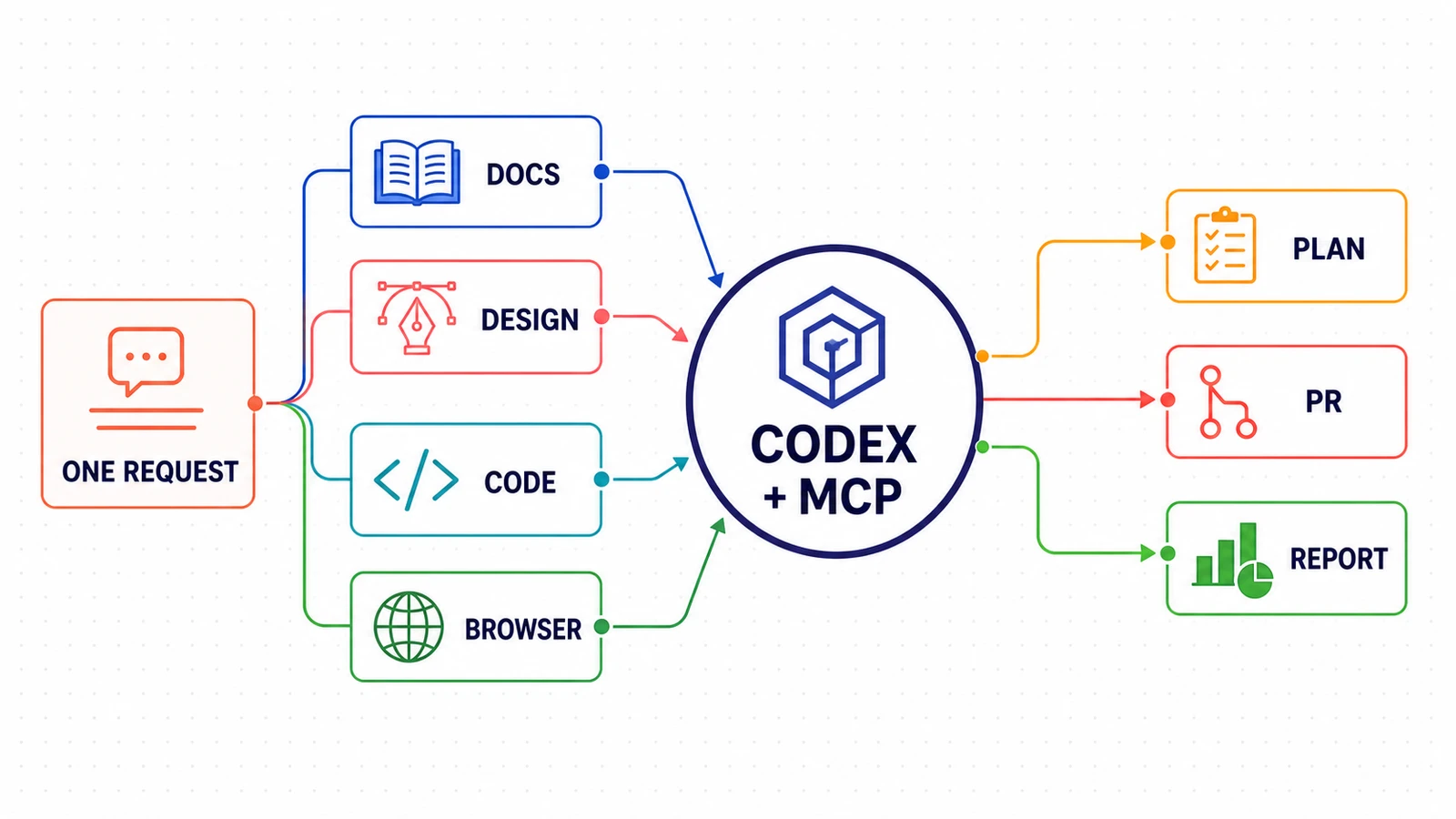
What can Codex achieve with MCP?
The valuable workflows are not “ask one app one question.” They combine authoritative context, an action, verification, and a review boundary.
Plan and maintain work
Inspect a backlog, correct task fields, select a balanced sprint, and create a useful board without copying records between tools.
Notion · Jira · Linear
Build and verify software
Compare a brief and design with the repository, implement an approved slice, run tests, and prepare a reviewable pull request.
Docs · Figma · GitHub · Browser
Investigate and report
Correlate logs, tickets, documents, and live behavior; separate evidence from inference; and produce a source-linked recommendation.
Monitoring · Data · Docs · Browser
The exact tools depend on the plugins and MCP servers installed in your environment, the accounts you connect, and workspace policy. The pattern is transferable: read the right source, propose the smallest change, ask before writing, then verify what changed.
The three categories above describe broad outcomes. The clearest way to understand the control pattern is to begin with one familiar system, so the tutorial starts with Notion before expanding to multi-MCP combinations.
Notion MCP tutorial: connect Codex, update a task, and plan a sprint
This example starts with a real Notion project tracker—not a blank Notion project management template. The same database already contains a Sprint 18 board and an unassigned backlog. Codex uses the Notion MCP to inspect that system, make one constrained task update, propose Sprint 19, wait for approval, and create a new Notion Kanban board view.
The goal is not to automate project management broadly. It is to produce two precise, visible improvements: correct one crucial task without disturbing its surrounding data, then create a Sprint 19 board from approved work in the existing database.
1. Connect the Notion MCP to Codex
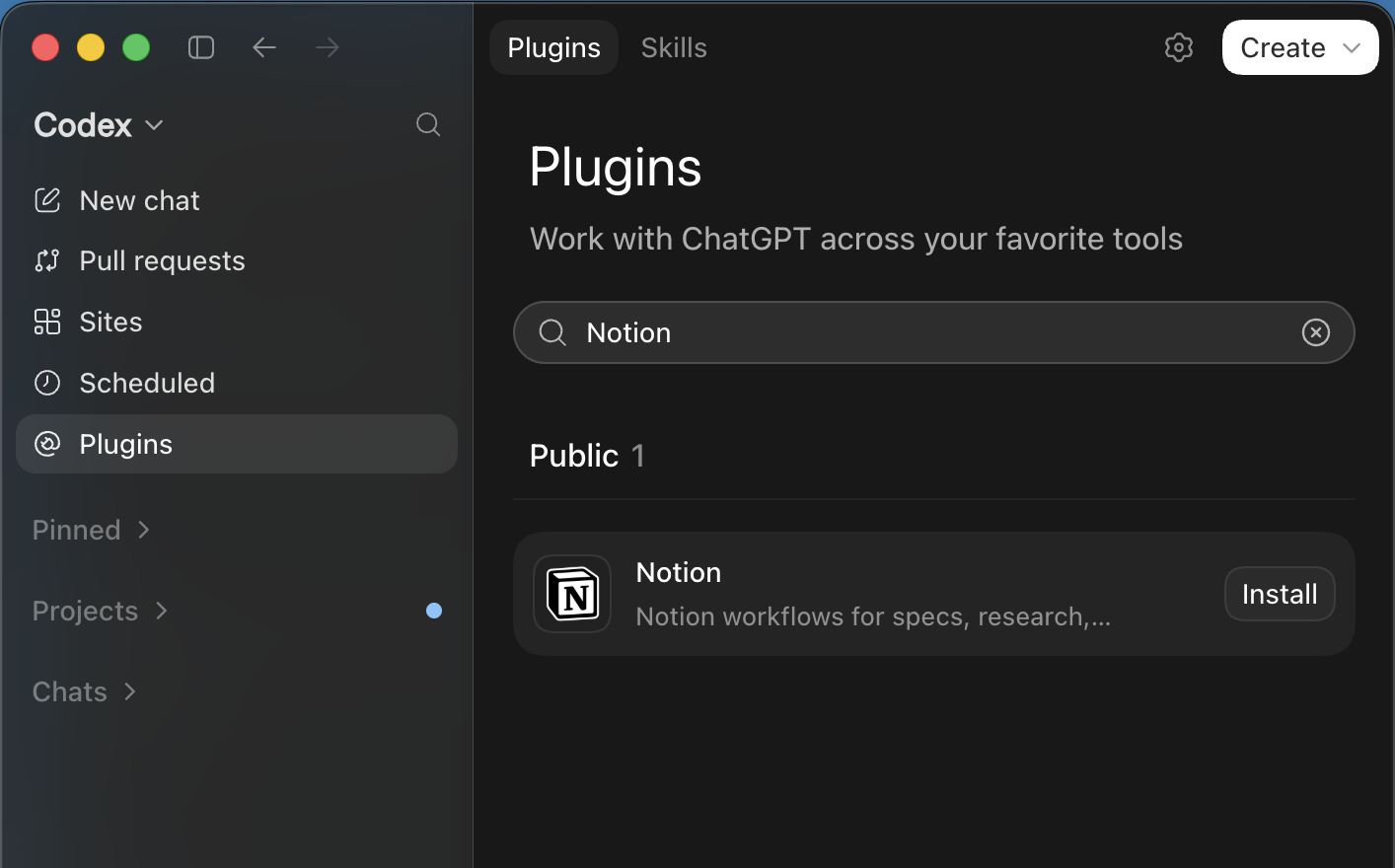
In Codex, the connection starts in the Plugins Directory. Install the Notion plugin, review the connection notice, continue to Notion, and choose the intended workspace. Notion remains responsible for workspace access and permissions; Codex only receives the capabilities granted through that connection.
Connection walkthrough
Four steps from the Plugins Directory to a connected Notion workspace.
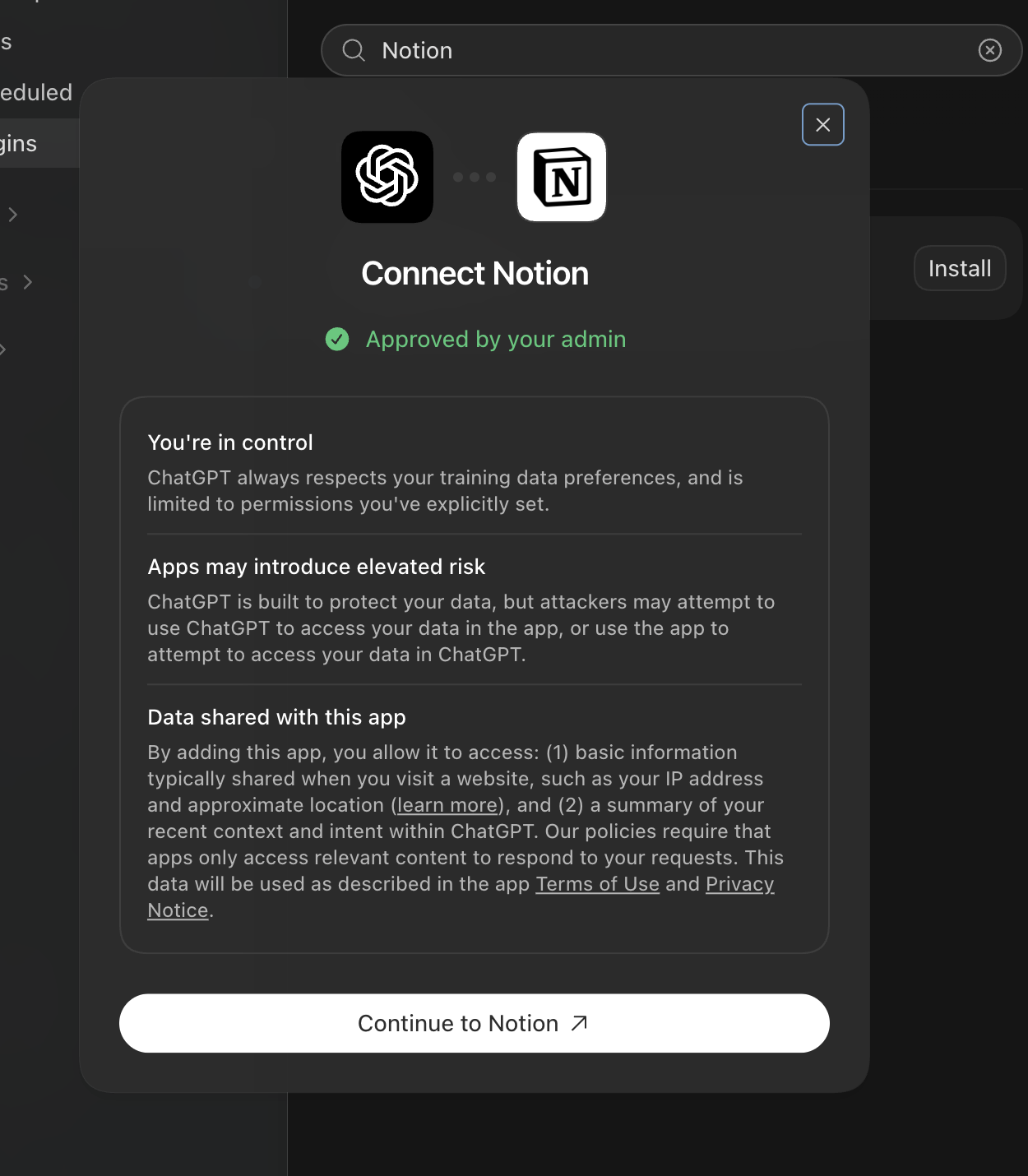
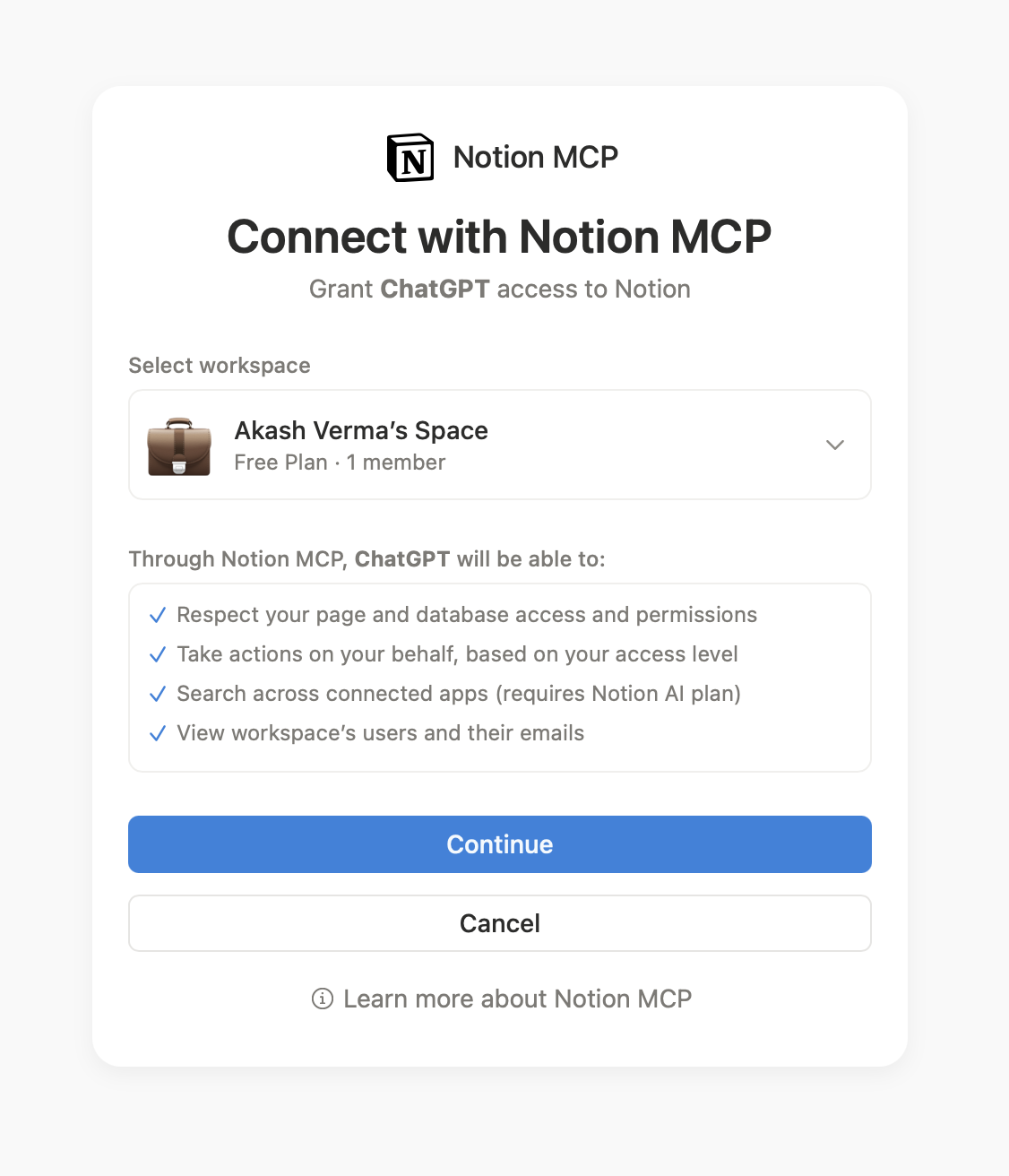
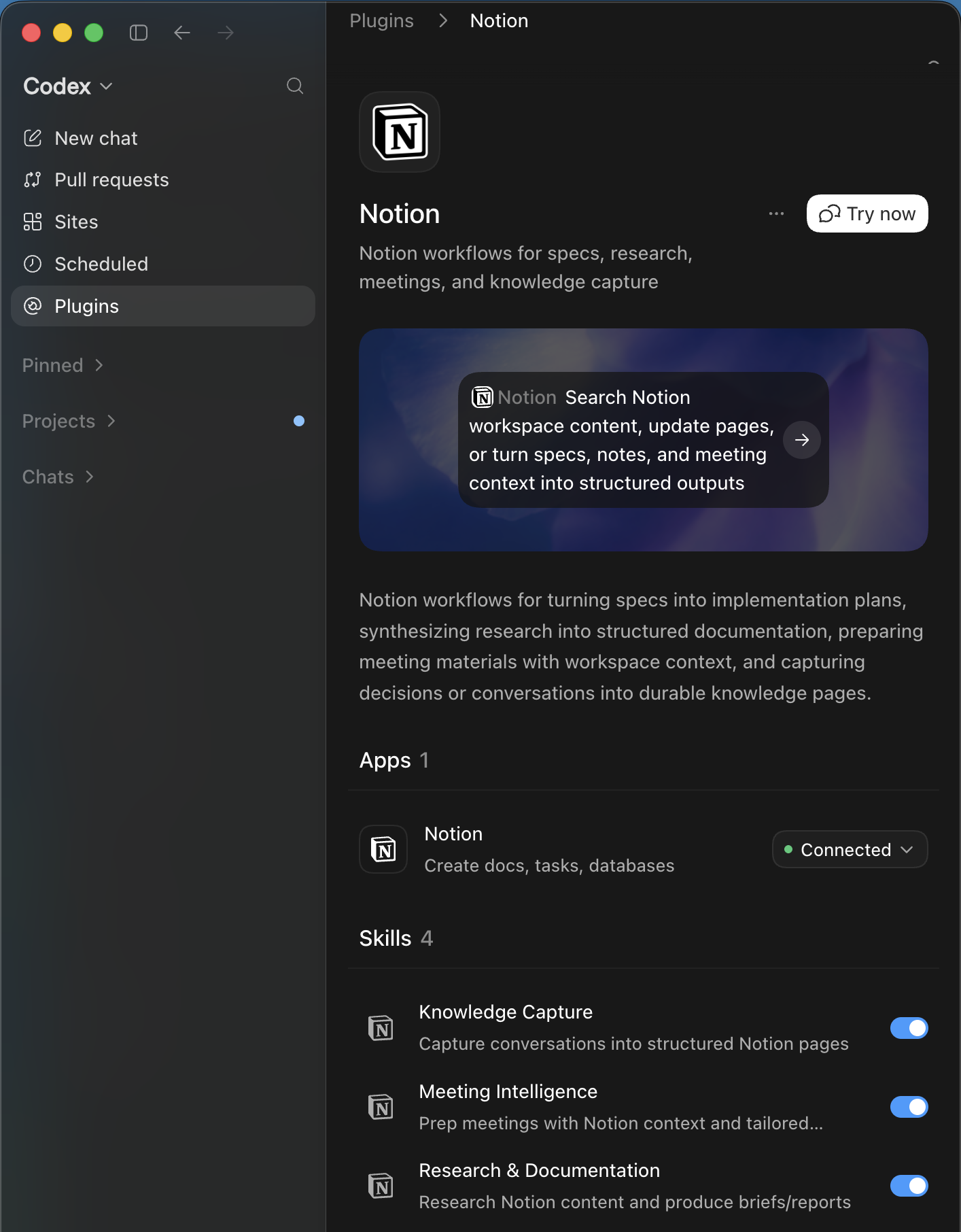
A connected status confirms that Codex can reach the authorized Notion workspace. It does not yet tell Codex which database to use, what fields exist, or which values are safe to change. That is why the workflow begins with a read-only inspection.
2. Verify the existing Notion project tracker
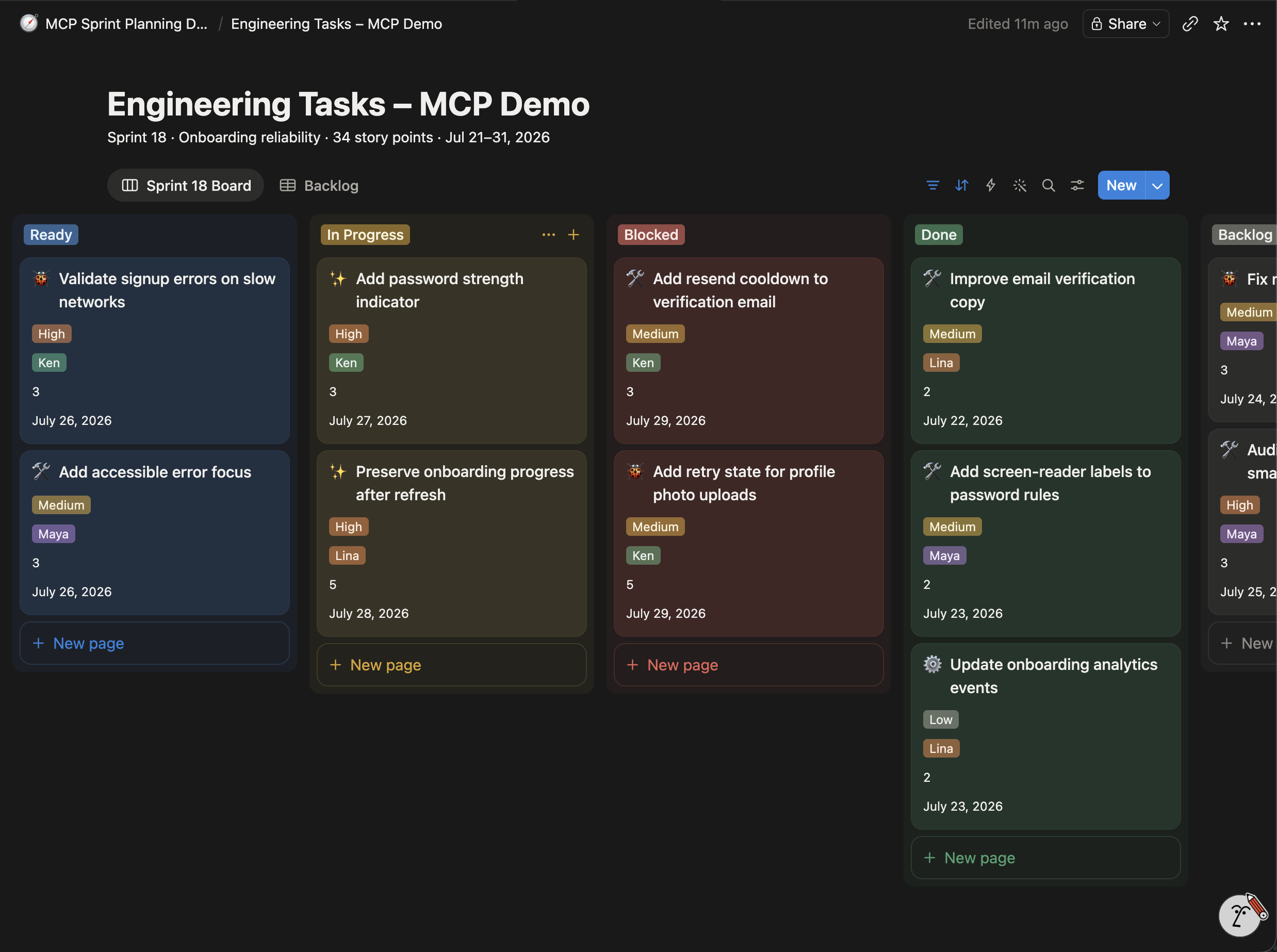
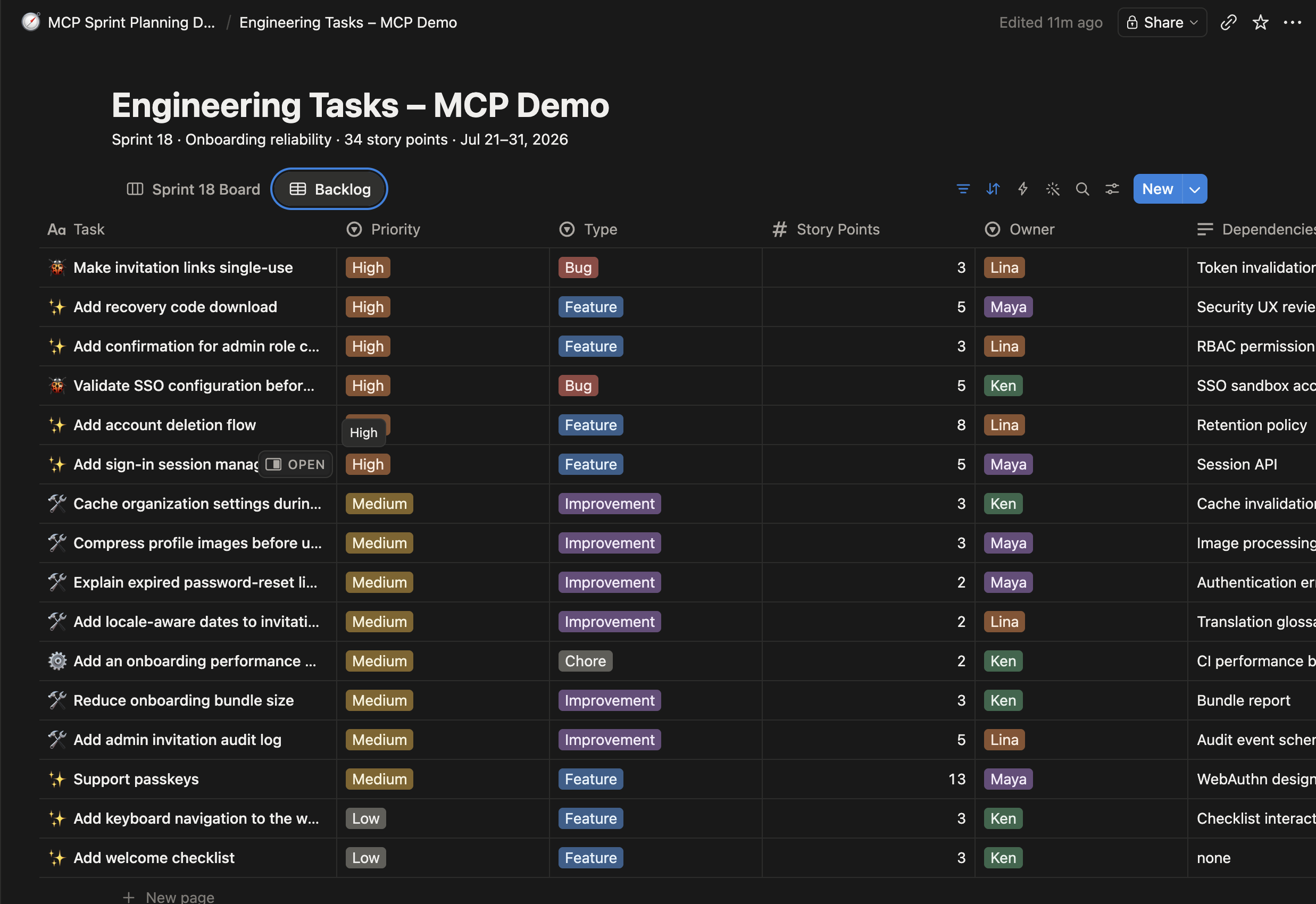
Before any write, inspect the source. Here the same database has two useful views: a status-grouped Sprint 18 board and a table-style backlog. This read-only pass lets Codex discover the schema, allowed values, task counts, story points, dependencies, and owners before proposing a change.
@Notion — use the Notion MCP to inspect the “Engineering Tasks – MCP Demo” database.

Report:
• Connected workspace
• Available database properties
• Existing views
• Sprint 18 and unassigned backlog task counts
• Sprint 18 story points by status
• Backlog tasks by priority

Do not change anything.@Notion — use the Notion MCP to inspect the “Engineering Tasks – MCP Demo” database. Report: • Connected workspace • Available database properties • Existing views • Sprint 18 and unassigned backlog task counts • Sprint 18 story points by status • Backlog tasks by priority Do not change anything.
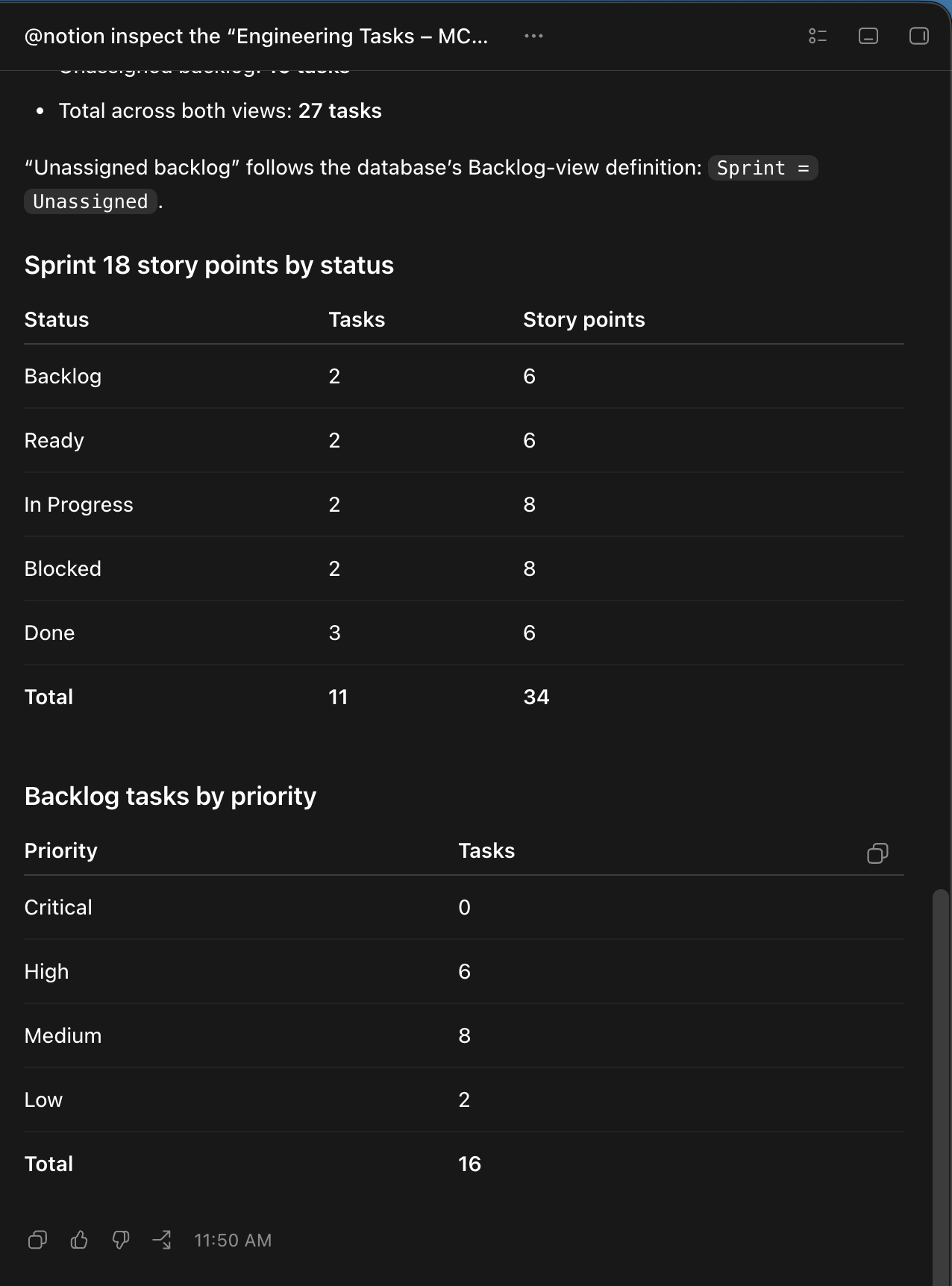
The inspection establishes the baseline: Codex now knows the schema, current views, task counts, and allowed field values. With that evidence in hand, the safest first write is deliberately small—one named task and a short list of permitted changes.
Flow 1: update one task without disturbing the rest
The task Fix mobile signup failure starts with Medium priority, Backlog status, and no acceptance criteria. The prompt follows the shape used in Codex: select Notion, name one record, and list the exact patch.
@Notion

Use the Notion MCP to update only “Fix mobile signup failure”:

• Priority: Critical
• Status: Ready
• Acceptance Criteria:
 1. Preserve entered form values after a recoverable request failure.
 2. Show an actionable retry message for timeouts and temporary server errors.
3. Move keyboard focus to an accessible error summary.@Notion Use the Notion MCP to update only “Fix mobile signup failure”: • Priority: Critical • Status: Ready • Acceptance Criteria: 1. Preserve entered form values after a recoverable request failure. 2. Show an actionable retry message for timeouts and temporary server errors. 3. Move keyboard focus to an accessible error summary.
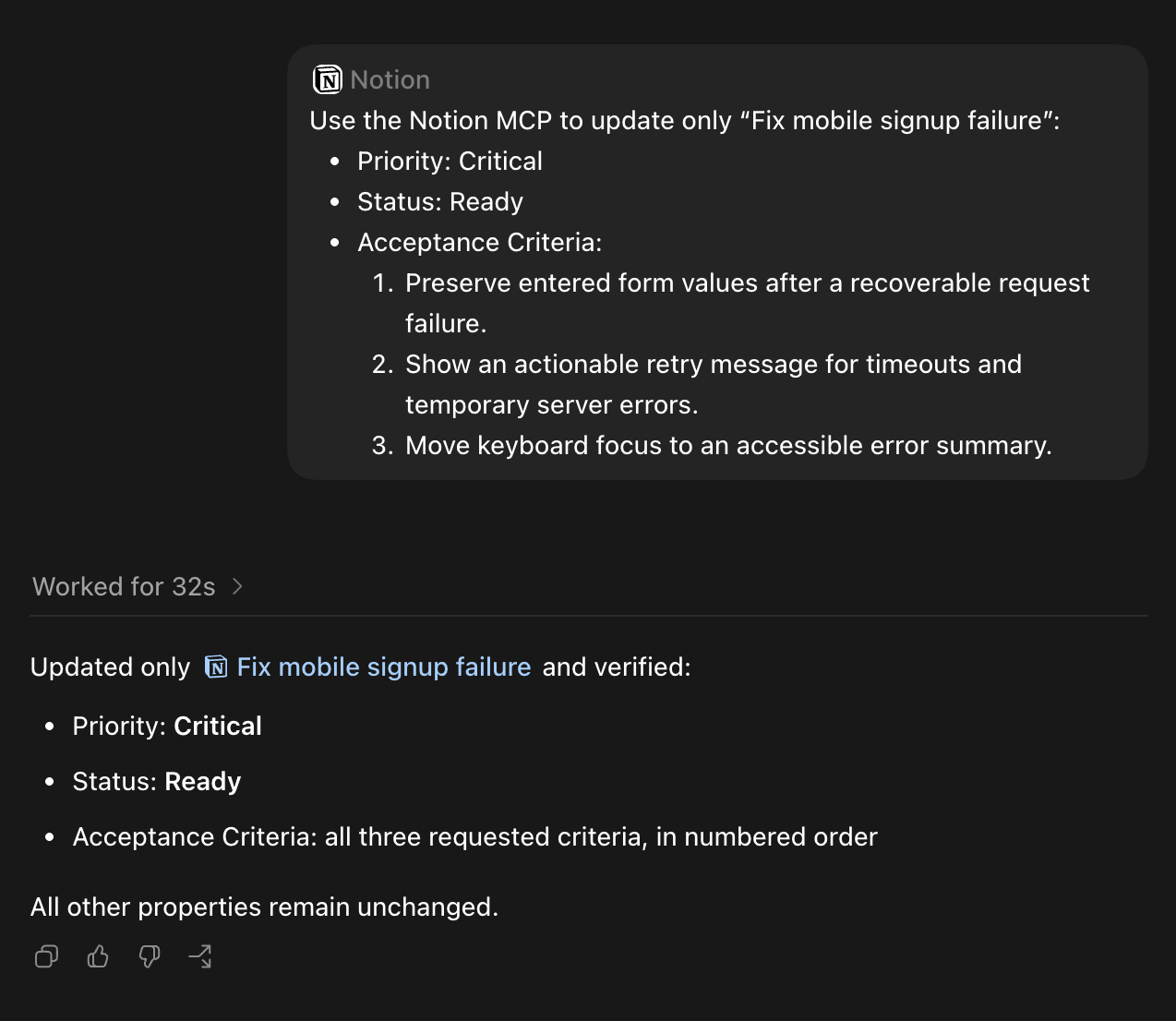
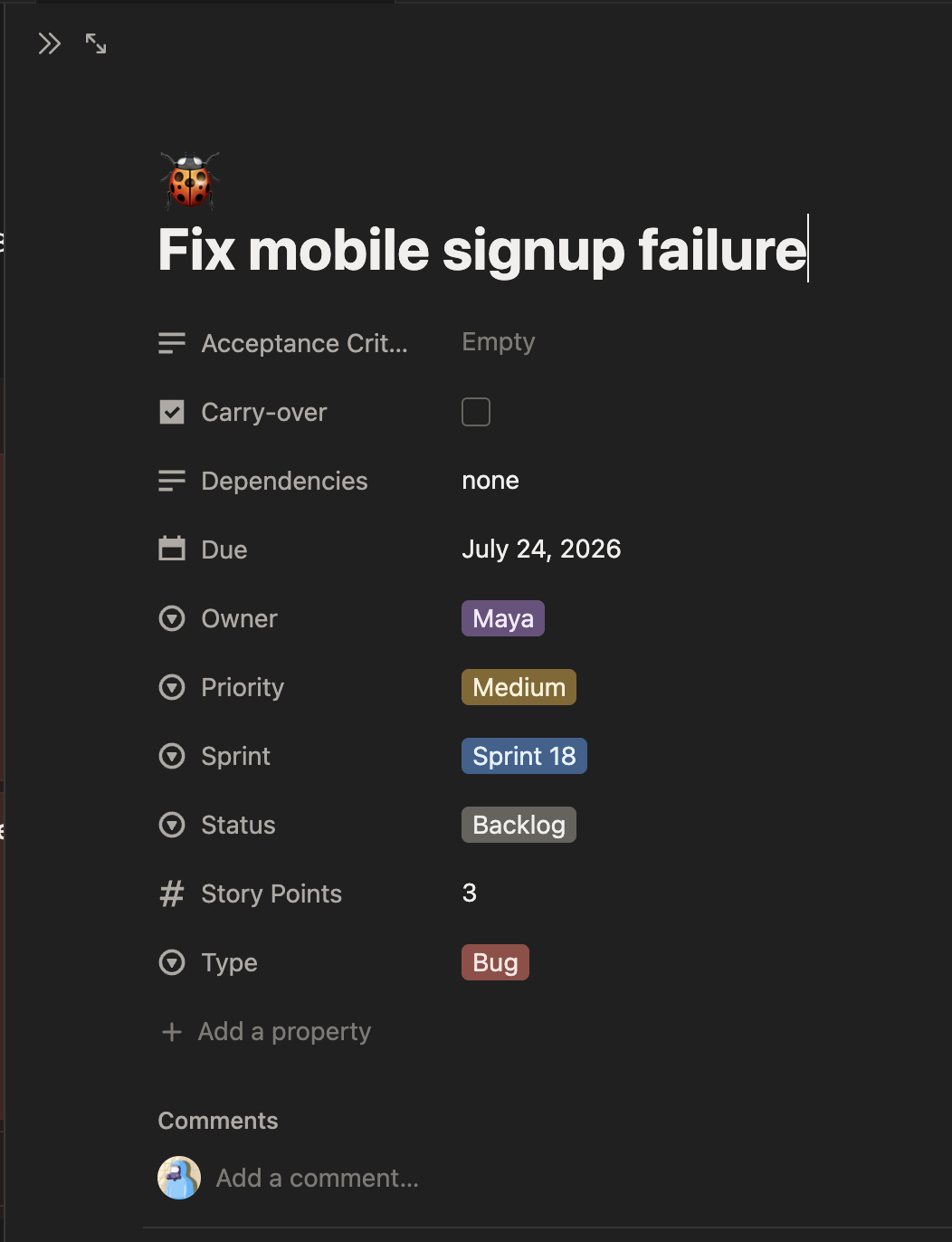
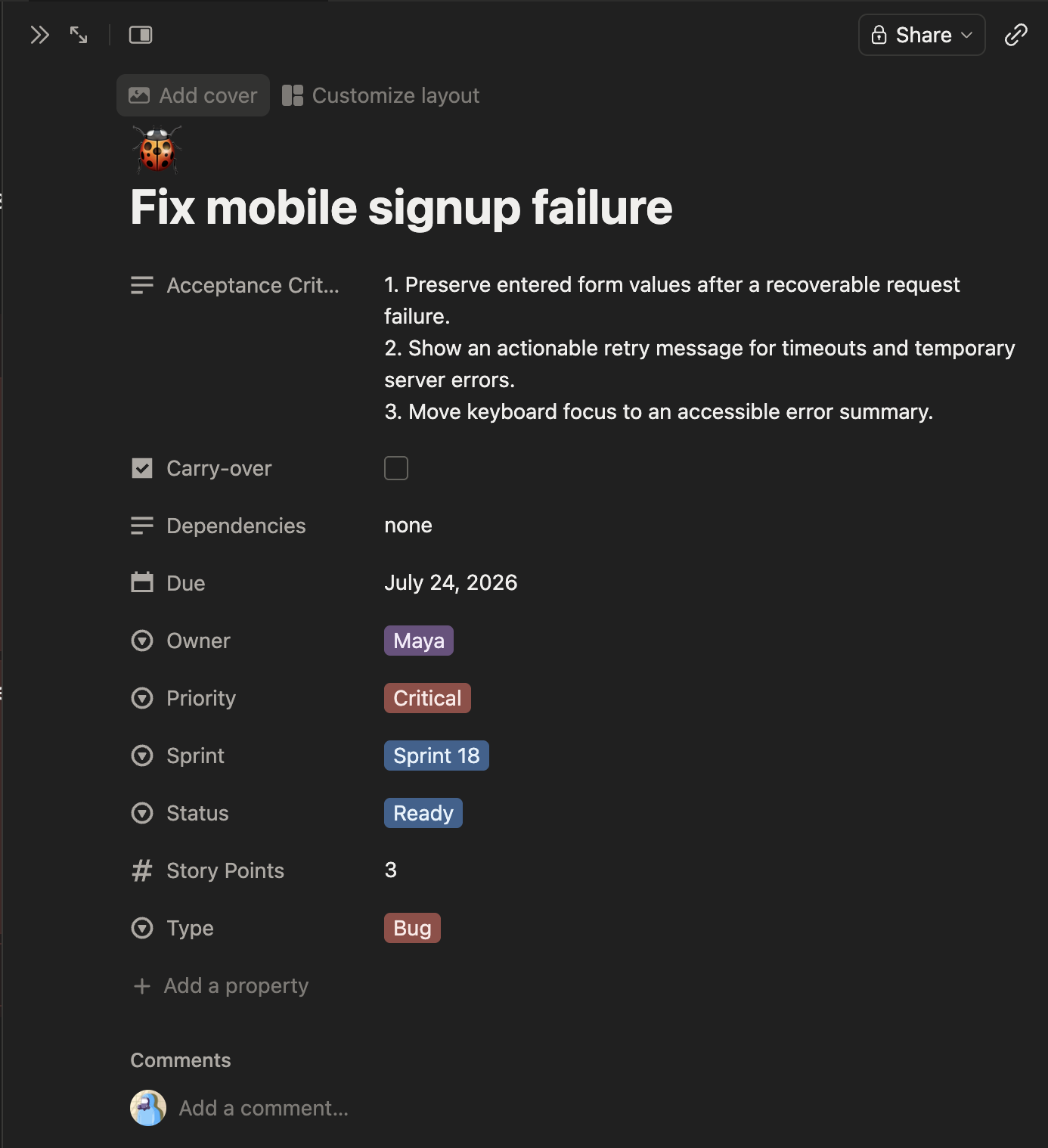
This first flow proves that the connection can make a constrained write and preserve everything outside the approved patch. The next flow applies the same discipline to a larger planning decision: selecting several tasks, respecting capacity, and creating a new view without duplicating the database.
Flow 2: propose, approve, and create a new sprint board
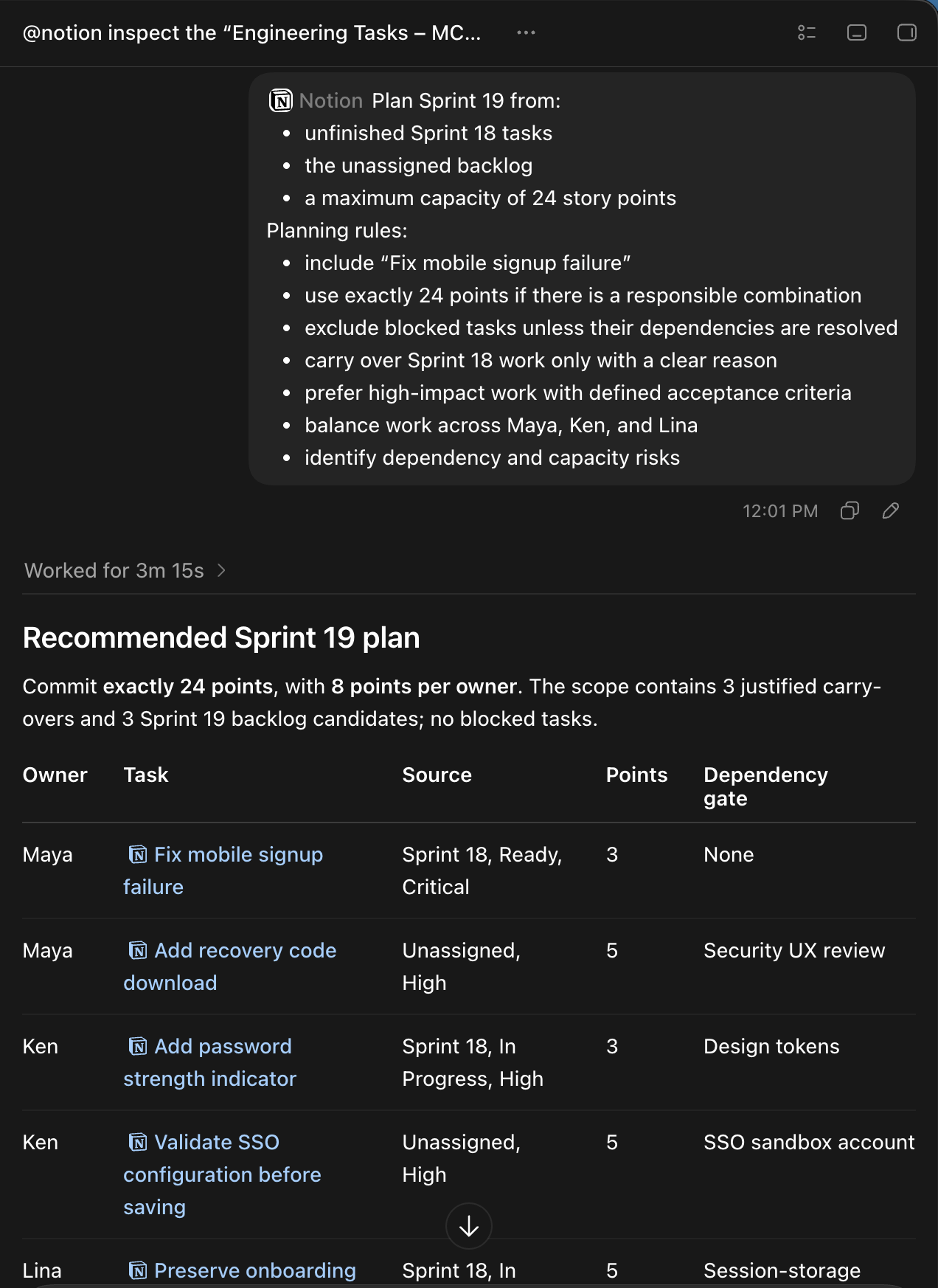
Sprint planning is a separate write boundary. First ask Codex to recommend a responsible 24-point plan from unfinished Sprint 18 work and the backlog. Only after reviewing that recommendation should a second prompt authorize the Notion MCP to update tasks and create a Sprint 19 Board view in the same database.
@Notion

Plan Sprint 19 from:
• unfinished Sprint 18 tasks
• the unassigned backlog
• a maximum capacity of 24 story points

Planning rules:
• include “Fix mobile signup failure”
• use exactly 24 points if there is a responsible combination
• exclude blocked tasks unless their dependencies are resolved
• carry over Sprint 18 work only with a clear reason
• prefer high-impact work with defined acceptance criteria
• balance work across Maya, Ken, and Lina
• identify dependency and capacity risks@Notion Plan Sprint 19 from: • unfinished Sprint 18 tasks • the unassigned backlog • a maximum capacity of 24 story points Planning rules: • include “Fix mobile signup failure” • use exactly 24 points if there is a responsible combination • exclude blocked tasks unless their dependencies are resolved • carry over Sprint 18 work only with a clear reason • prefer high-impact work with defined acceptance criteria • balance work across Maya, Ken, and Lina • identify dependency and capacity risks
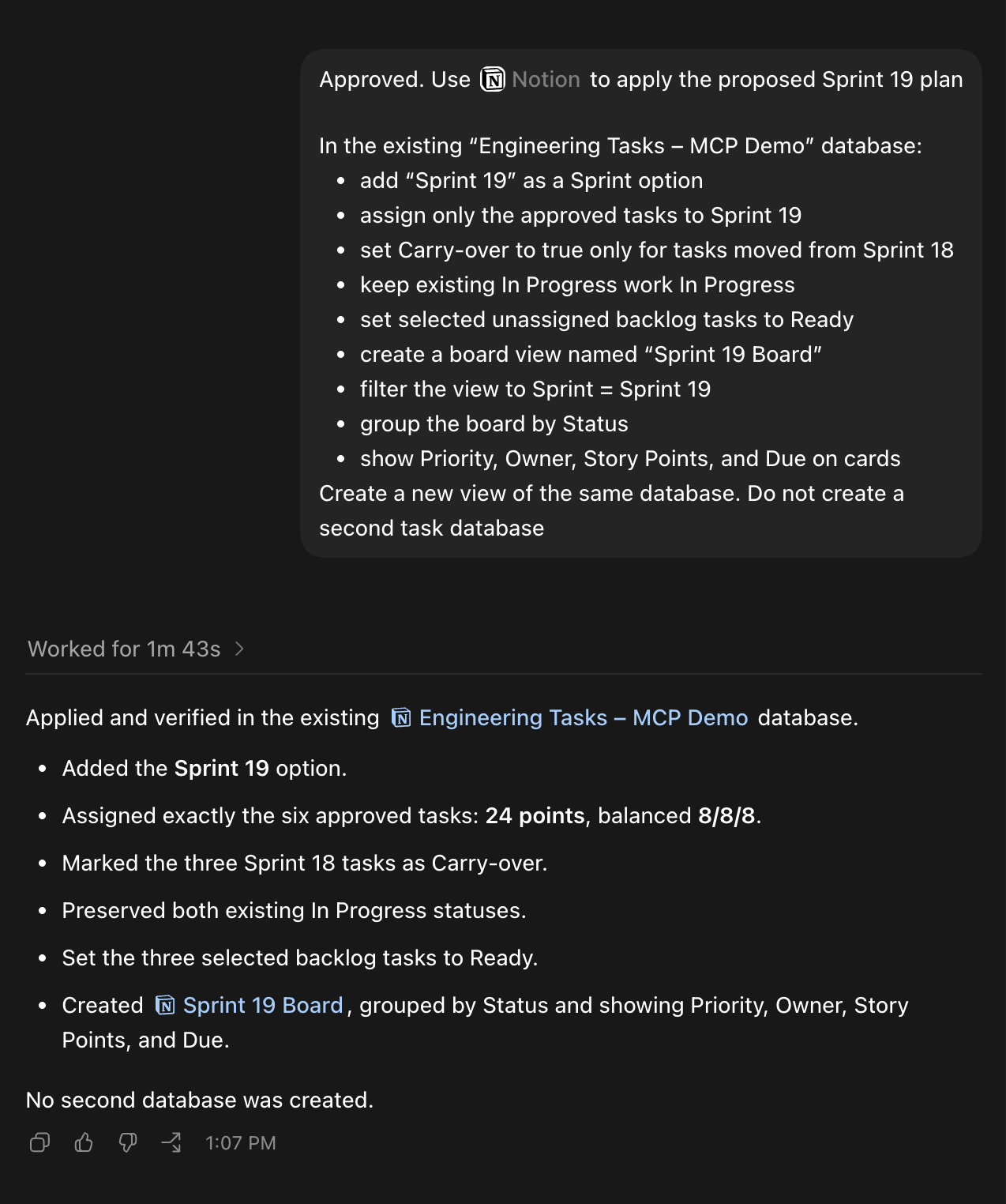
Approved. Use @Notion to apply the proposed Sprint 19 plan

In the existing “Engineering Tasks – MCP Demo” database:
• add “Sprint 19” as a Sprint option
• assign only the approved tasks to Sprint 19
• set Carry-over to true only for tasks moved from Sprint 18
• keep existing In Progress work In Progress
• set selected unassigned backlog tasks to Ready
• create a board view named “Sprint 19 Board”
• filter the view to Sprint = Sprint 19
• group the board by Status
• show Priority, Owner, Story Points, and Due on cards

Create a new view of the same database. Do not create a second task databaseApproved. Use @Notion to apply the proposed Sprint 19 plan In the existing “Engineering Tasks – MCP Demo” database: • add “Sprint 19” as a Sprint option • assign only the approved tasks to Sprint 19 • set Carry-over to true only for tasks moved from Sprint 18 • keep existing In Progress work In Progress • set selected unassigned backlog tasks to Ready • create a board view named “Sprint 19 Board” • filter the view to Sprint = Sprint 19 • group the board by Status • show Priority, Owner, Story Points, and Due on cards Create a new view of the same database. Do not create a second task database
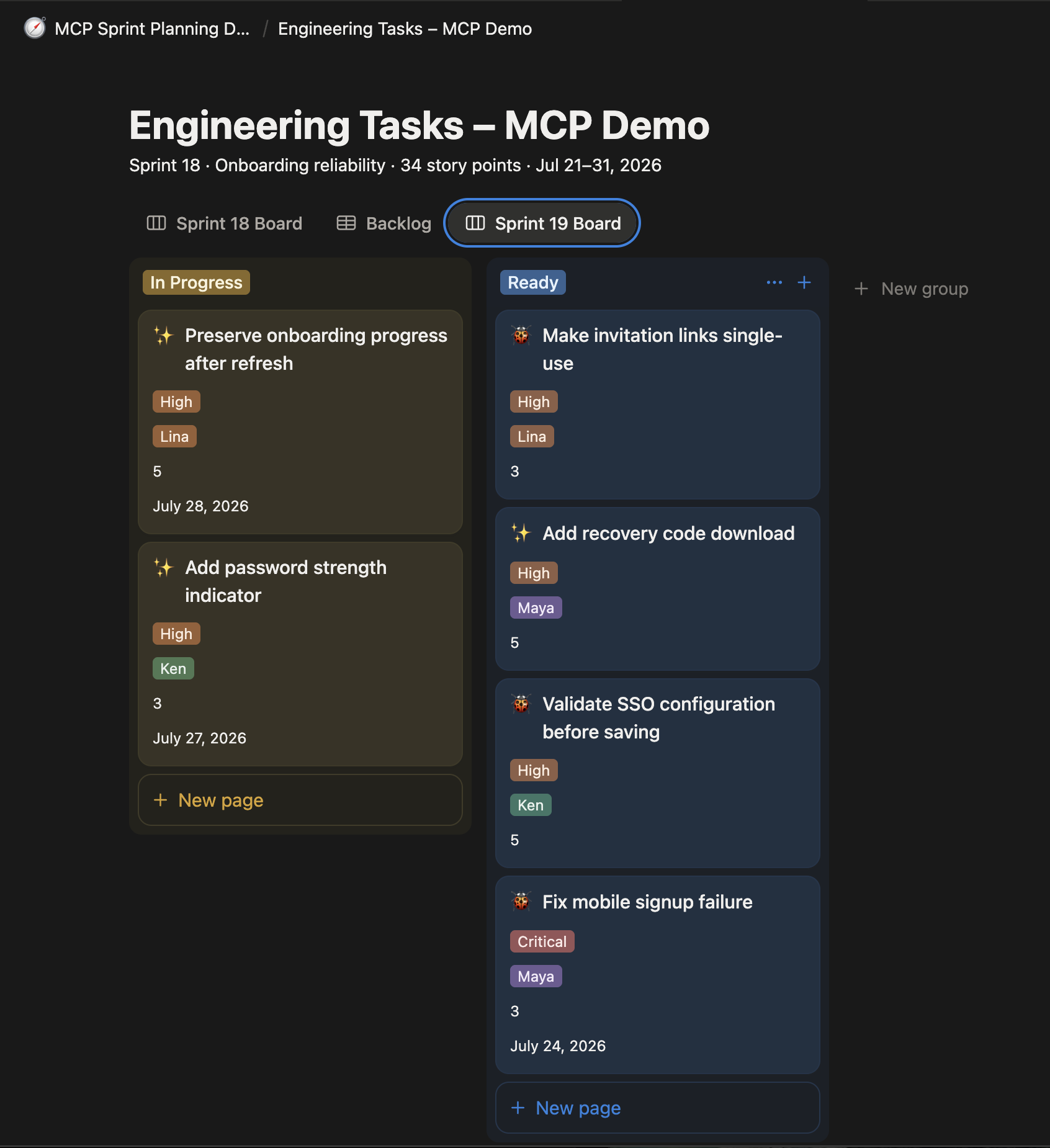
Whether a team calls this a Notion Kanban board or a Notion Scrum board, the important pattern is the same: inspect the source, constrain the request, review the proposal, authorize the write, and verify the resulting state.
Does this require GitHub MCP? No. These flows only inspect and update Notion, so the Notion connection is enough. Add GitHub when Codex must compare a task with the repository, implement it, verify code, or link a pull request.
What happened under the hood?
The Notion tutorial followed one controlled loop:
- 1 Inspect
- 2 Propose
- 3 Review
- 4 Write
- 5 Verify
Three useful MCP combinations for Codex
The Notion tutorial showed the complete control loop inside one system. Several well-chosen connections can extend that loop across a fragmented workflow. Each connection should contribute a distinct source of truth, action, or verification step.
1. Turn a product brief into a verified implementation plan
Combine Notion, GitHub, and the Browser when a product request must be checked against real code and a running interface. Codex can read the approved brief in Notion, inspect related issues and repository structure in GitHub, and exercise the current product in the browser.
The first deliverable should be an evidence table—not code. It can map each requirement to the relevant document, issue, file, and observed behavior, then label it supported, missing, ambiguous, or conflicting. After a human approves the scope, Codex can propose the smallest useful implementation slice, make the local change, run focused tests, and prepare a pull request. The workflow stays understandable because the research, approval, implementation, and external publication stages remain separate.
2. Convert scattered planning material into an actionable project view
Combine Google Drive and Notion when strategy documents, spreadsheets, and the project tracker have drifted apart. Codex can collect goals, milestones, constraints, and unresolved decisions from authorized Drive files, then compare that evidence with the fields and records already present in Notion.
Instead of creating a second planning system, ask Codex to propose precise edits to the existing tracker: missing owners, inconsistent priorities, outdated dates, or tasks that no longer support a current goal. Review the proposed changes before allowing the write. This is especially useful during quarterly planning because it turns several documents into a controlled update without silently replacing the team’s established workflow.
3. Run a release-readiness check across plans, code, and the product
Combine Notion, GitHub, and the Browser to answer a question that no single tool can answer: “Is this release actually ready?” Notion contributes acceptance criteria and ownership, GitHub contributes implementation and test history, and the browser contributes evidence from the running experience.
Codex can report which requirements are verified, which are only claimed, and which still lack evidence. It can also separate blockers from follow-up work and identify the exact source behind every conclusion. The final action might be a Notion status update or a draft GitHub pull request, but that write should happen only after the evidence report is reviewed.
Across all three combinations, the durable sequence is the same: discover, compare, propose, approve, act, and verify. The next section turns that sequence into a reusable set of safety boundaries.
A repeatable pattern for safe MCP work
Before Codex acts, make six questions easy to answer:
Where may Codex look?
What must it report first?
What may it edit?
What must stay unchanged?
Where must it stop?
How will the result be checked?
These boundaries turn a vague request into a reviewable change set. MCP architecture explains how Codex keeps the connections behind that workflow separate.
MCP architecture: host, client, and server
The protocol has three participant types:
Codex coordinates the task.
One connection to one server.
Exposes capabilities from a system.
 Codex host
One client per server
 Notion
 Google Drive
 GitHub
 Browser
One server means one client connection. Tokens, tools, data, and trust do not automatically cross between connections.
- 1. Goal
Codex interprets the task.
- 2. Discover
Clients reveal capabilities.
- 3. Call
The correct server executes.
- 4. Review
Codex verifies the result.
JSON-RPC, lifecycle, and capabilities.
STDIO locally; Streamable HTTP remotely.
Tools, resources, and prompts are different capabilities
Performs an operation.
Provides readable context.
Provides a reusable template.
Capability type does not grant permission. The server still validates the connected identity and applies the product’s normal authorization rules.
Each connection has its own lifecycle and trust boundary
Each server keeps a separate client connection.
Credentials never move between connections.
Returned content is data—not authority to expand the task.
The architecture tells us which component talks to which server. For a protected remote server, one question remains: how does that client connection act for the user without receiving the user’s password or accepting a token meant for somewhere else? That is the role of OAuth 2.0.
How OAuth 2.0 protects a remote MCP server
OAuth answers a narrow question: how can Codex use a protected remote MCP server on a user’s behalf without receiving that user’s password or reusing a token intended for another service?

Points Codex to authorization.
Protects the returned code.
Validate issuer, audience, expiry, and scope.
Three limits remain after OAuth
Where the token works.
What it may request.
Which data the user may access.
OAuth grants delegated access—not blanket approval. The server still needs validation, rate limits, audit logging, and a review gate before consequential external actions.
Production rules that matter
- ✓Start read-only and request minimal scopes.
- ✓Keep credentials separate per server.
- ✓Validate inputs and product permissions.
- ✓Treat connected content as untrusted data.
- ✓Review before consequential writes.
- ✓Use separate tokens for upstream APIs.
At this point the complete path is visible: a user gives Codex a goal, the host selects a separate client connection, OAuth authorizes a protected remote server, and the server applies its own permissions. The final section places VoicePing into that general model as one optional source of authorized context.
Where VoicePing MCP fits
VoicePing MCP turns an authorized VoicePing workspace into a meeting-knowledge source for MCP-compatible AI clients. After you select a workspace and approve transcript scopes, a client can find relevant meetings and read the available context—without opening every transcript manually.
Find the right meetings
Search authorized conversations by customer, topic, or team.
Read the evidence
Use available transcripts while respecting workspace access and approved scopes.
Create useful work
Turn meeting history into agendas, proposals, follow-ups, KPI reviews, or action plans.
Start with a real workflow
Connect your AI client
Setup covers ChatGPT, Claude, Claude Code, Codex CLI, Gemini CLI, and other MCP clients.
VoicePing MCP supplies meeting context; your AI client still handles the reasoning, and any connected systems keep their own permissions and review boundaries.