In this article
Choose where the words need to go. A tool that types your spoken draft into a document solves a different problem from one that records and translates a meeting. On a Mac, that distinction is more useful than an unsupported “most accurate” ranking.
This guide compares four existing options: VoicePing, Apple Dictation, Google Docs and Speechnotes. VoicePing publishes this article. The numbers indicate listing order, not measured recognition performance.
Choose the output first
For meeting records and live translation, evaluate VoicePing . For text in the app you are already using, try Apple Dictation . For a shared document, use Google Docs voice typing . For a separate browser draft, consider Speechnotes .
Picture two tasks. You dictate a proposal paragraph, correct three names and continue editing. In a customer call, you instead need to capture both sides, identify a decision and send an action list. Test the complete task; seeing words appear on screen is only the first step.
Four tools and their costs
Prices and conditions below were checked September 17, 2026. Paid subscriptions, included macOS functionality and free personal-account tools have different scopes.
| Service and plan | Price and billing | Included use and limits |
|---|---|---|
| 1. VoicePing — Free / Individual | Free; Individual from US$31.50/month, billed monthly, tax included | One account. Free: 90 minutes/month, without saved minutes, audio data or file transcription. Individual: 450 minutes/month at this tier; paid recording features included. |
| 2. Apple Dictation | Included with macOS; no separate Dictation subscription | Text entry in apps. Language and feature availability depend on the Mac and its configuration. |
| 3. Google Docs voice typing | No separate charge for personal Google-account use | Requires a supported browser and microphone. Work or school administrators may disable voice typing; paid Workspace plans have separate terms. |
| 4. Speechnotes — Free / Premium | Free with ads; Premium US$1.90/month equivalent, paid for one year (US$22.80) | Premium removes ads. The vendor requires it for business use or publishing dictated speech. The annual license does not renew automatically; confirm tax at checkout. |
Sources: VoicePing plans , Apple Dictation guide , Google Docs account access , Google voice-typing requirements , and Speechnotes Premium terms .
VoicePing Individual is monthly-only and renews until cancelled. Its minutes are the plan’s transcription/translation allowance, not an extra allowance for each feature. Speechnotes separately charges US$0.10 per minute for audio/video file transcription ; this is pay-as-you-go, outside the dictation license. A one-hour file therefore has a US$6 listed processing cost, before any applicable tax.
1. VoicePing: translated meeting records
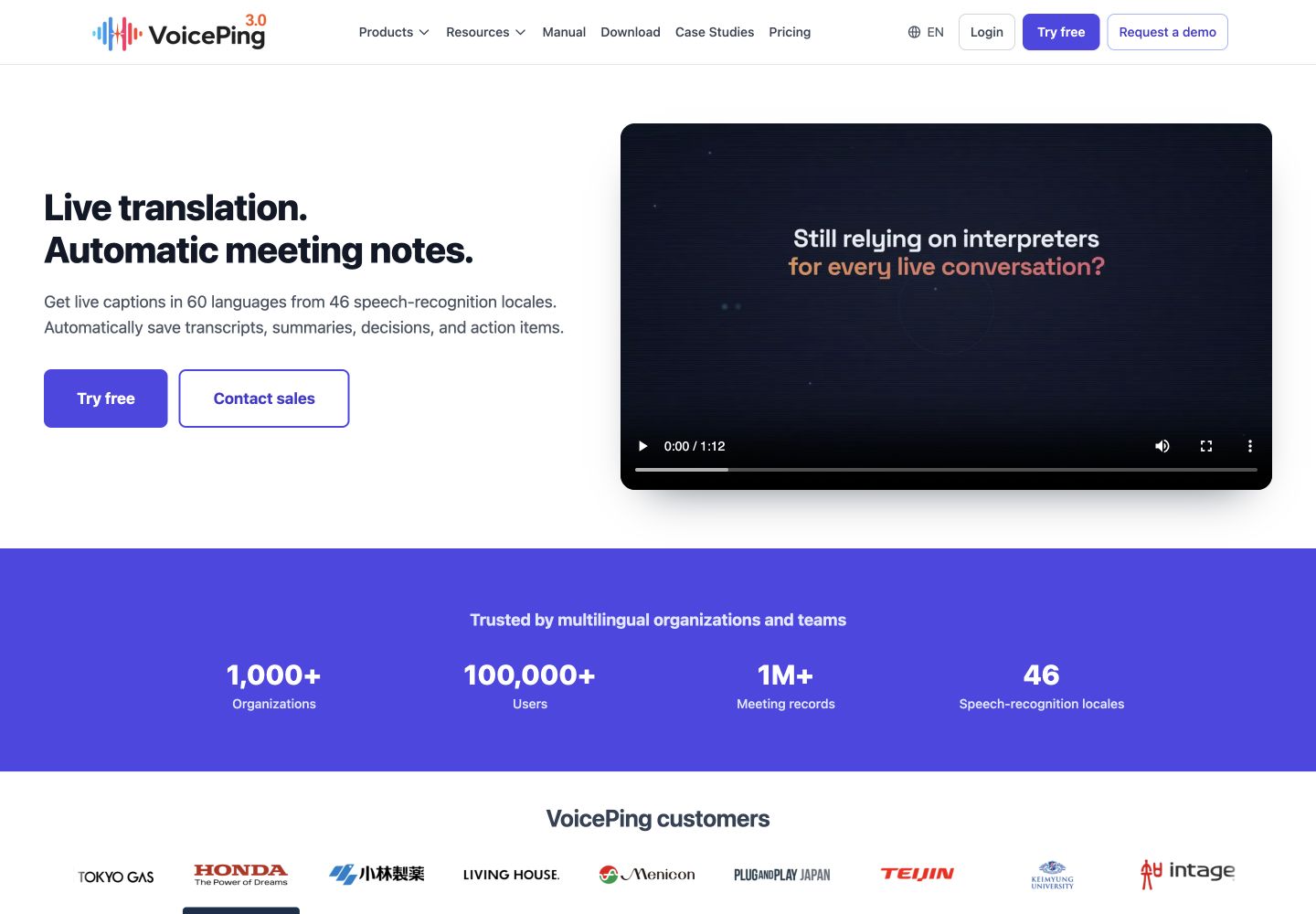
VoicePing is relevant when the output is a conversation record. It combines live transcription and translated captions with saved meeting material on eligible plans.
Its advantage: colleagues can follow translated speech and review the meeting afterward. Its limit: it is a meeting workflow, not a general replacement for typing into every Mac text field. Free live use also does not include the paid plan’s saved minutes or audio data.
For a Mac meeting, follow the official online-meeting setup :
- Join the meeting in your usual conferencing app.
- Open VoicePing and start recording or live translation.
- Choose the spoken language and the translation/display language.
- Check that both your microphone and the other participants’ audio are reaching the transcript before relying on it.
Use a short practice meeting to check the saved output and correction process. Choose the paid plan around the record you need, rather than assuming a free caption session includes everything.
2. Apple Dictation: text in your Mac apps
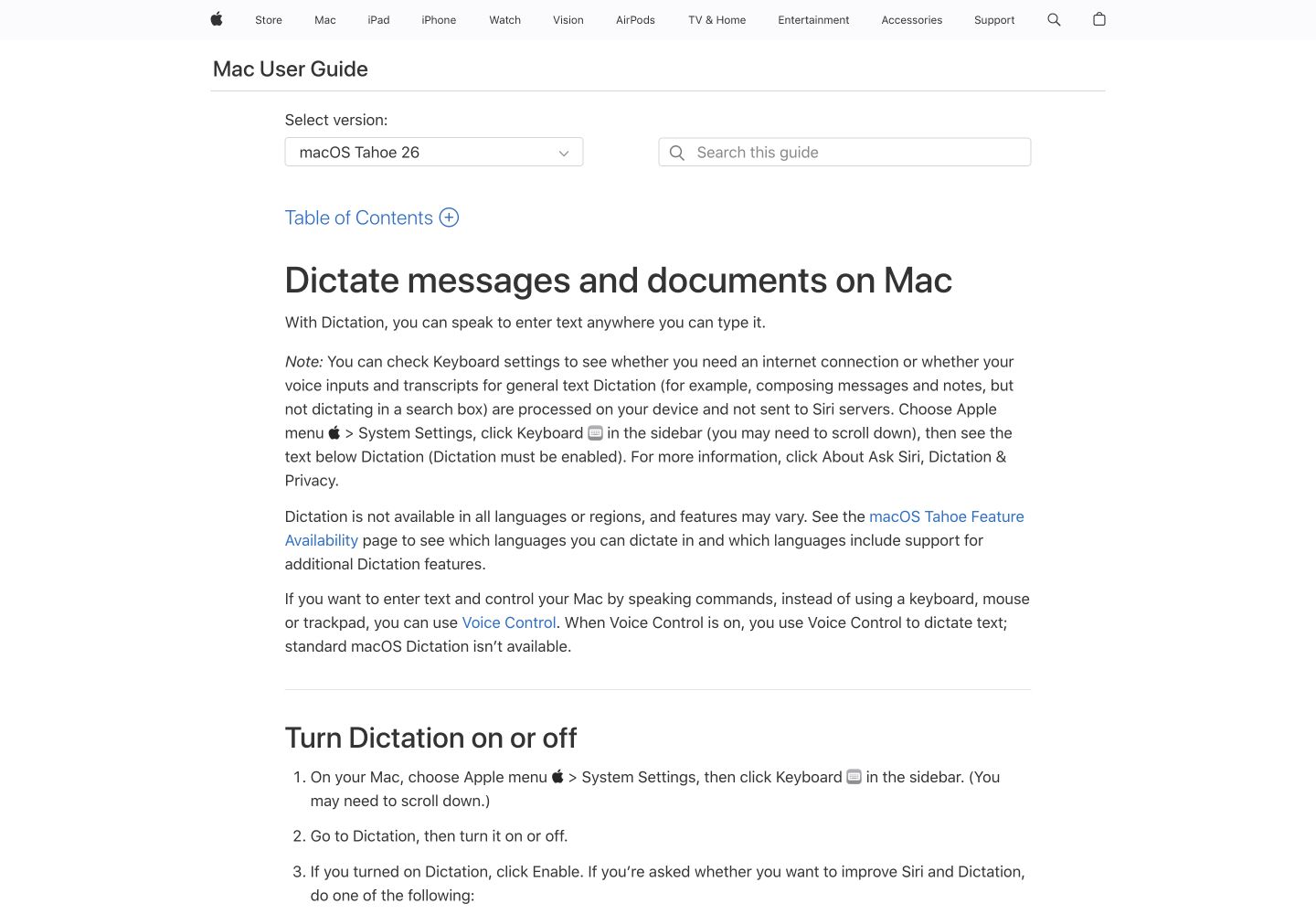
Apple Dictation puts speech into an app’s text field. Its advantage is staying inside your existing writing workflow; it does not add a meeting-record structure to that text.
- Open System Settings → Keyboard → Dictation and enable it.
- Select the appropriate language and microphone.
- Place the cursor in your document, then press the microphone key or choose Edit → Start Dictation.
- Speak, review the text and correct it in the document.
Apple’s Tahoe 26 guide allows ongoing dictation without a length timeout; silence for 30 seconds stops it. For spoken control of the Mac, investigate Apple’s separate Voice Control feature.
3. Google Docs: a shared document draft
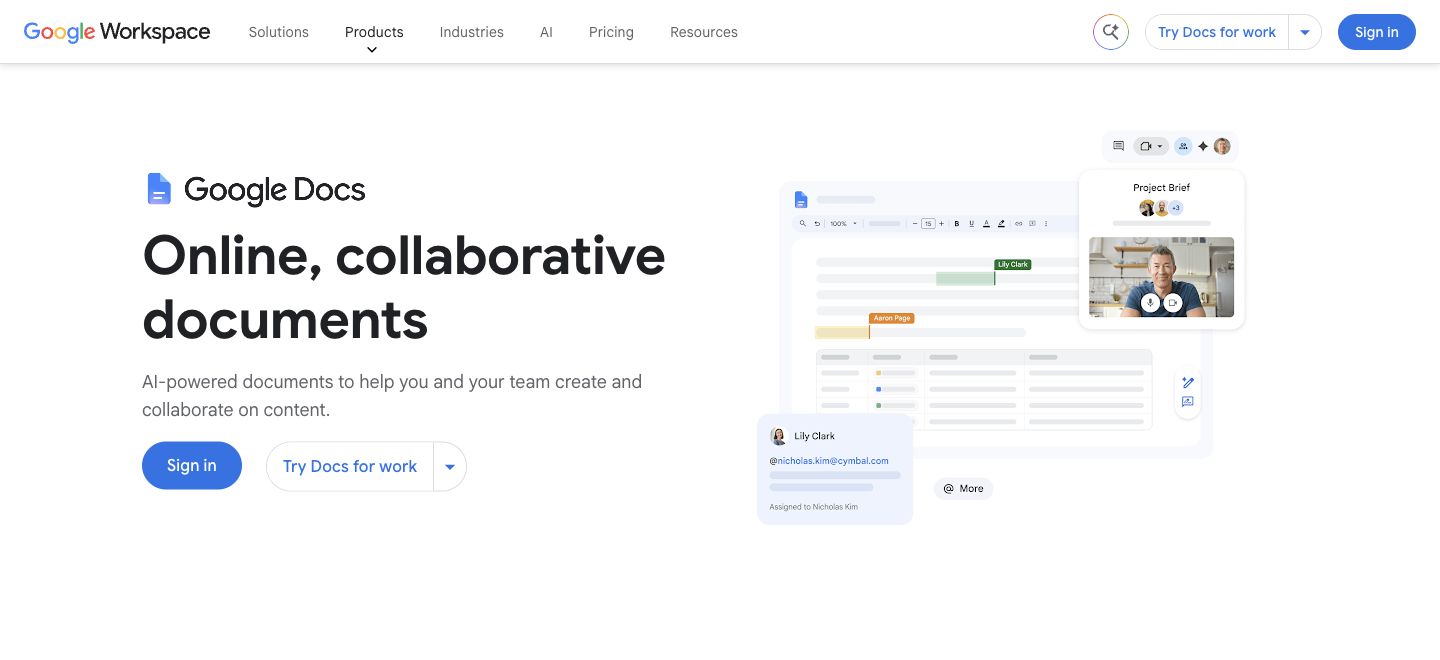
Google Docs suits a draft that colleagues will edit together. Voice input and subsequent revisions stay in the document, avoiding an extra copy-and-paste step.
The voice-typing guide supports recent Chrome, Edge and Safari versions:
- Open your document and choose Tools → Voice typing.
- Select the spoken language in the microphone panel.
- Click the microphone, allow access if prompted, and speak.
- Stop the microphone and review the draft before sharing.
Its advantage: dictation feeds an editable, collaborative document. Its limit: editing and formatting by voice are English-only and require both the account and document language to be English. That is narrower than its speech-input language list, which includes several English regional variants.
The browser handles speech recognition. If the feature is absent in a managed account, check the administrator’s policy before changing browser settings. A document draft should not be treated as an automatically attributed meeting transcript.
4. Speechnotes: a browser notepad
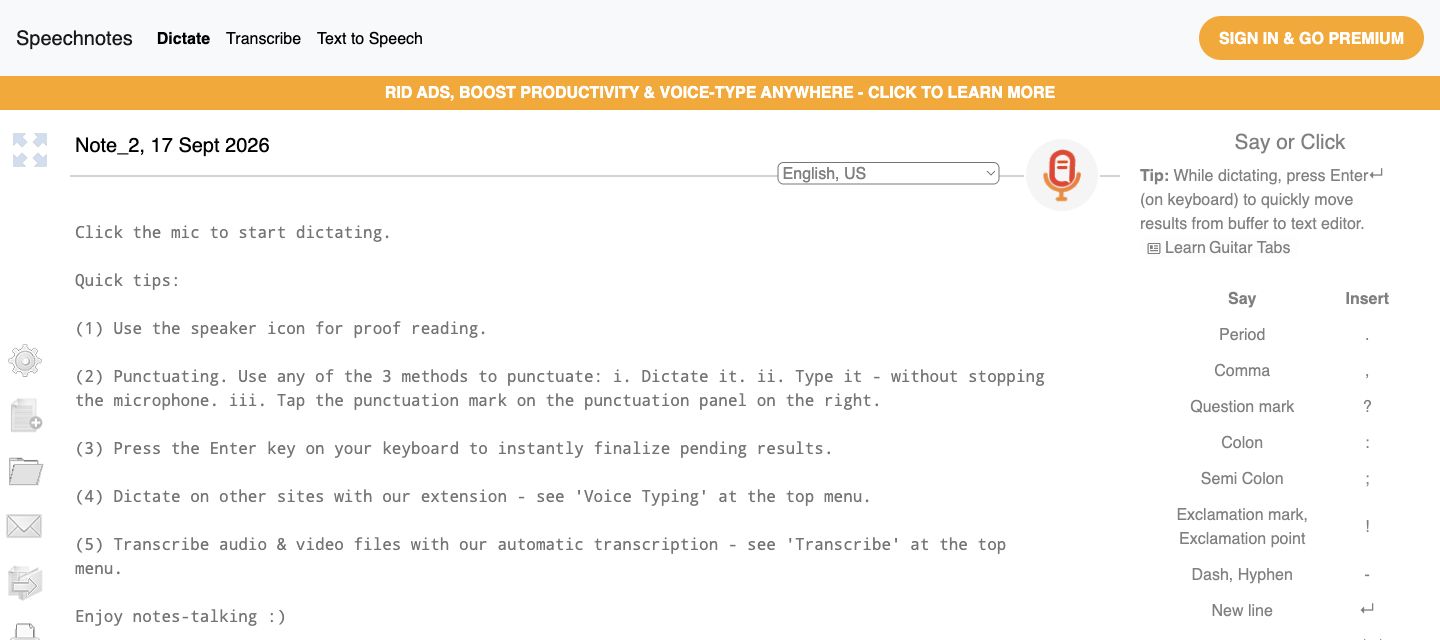
Speechnotes offers a straightforward place to dictate and edit a draft in Chrome. Select a language, start the microphone, speak, then review and copy or export the text.
Its advantage: a lightweight notepad with visible punctuation controls. Its limit: free use includes ads, and Premium is required for business use or publication . The text is stored in the browser; export important notes rather than treating browser storage as your only copy. Speech recognition is delegated to the browser or operating system, so local text storage is not a promise of offline recognition.
The separate file-transcription service offers timestamps and SRT captions. Do not judge that service by the live notepad’s output, or assume its file processing is included in a Premium dictation license.
Test with your own voice
A useful trial measures the work left after recognition. Use the same microphone, room and short passage for each relevant tool. Include a person’s name, a date, a quantity, a negative statement and a technical term you actually use.
- Check meaning: did “do not approve” become “approve,” or did a quantity change?
- Check correction effort: can you fix the passage comfortably in the tool where the final text belongs?
- Check the saved result: close and reopen your draft or meeting record. Confirm it exists in the expected place and format.
- For meetings, check both sides: a clean transcript of only your microphone is incomplete if remote speakers are missing.
Record the browser or macOS version and selected language alongside your notes. This makes a later comparison useful when the microphone, software or working environment changes.
Start with one real task and its required output. Pay for features that remove a demonstrated gap—saved meeting records, a commercial license or an editing workflow—after checking the complete result. This comparison uses published product information and inspected public interfaces; it does not claim a controlled speech-recognition benchmark.